 RetireFlo Resources
← All tutorials
RetireFlo Resources
← All tutorials
Adding Action Buttons to Your Survey
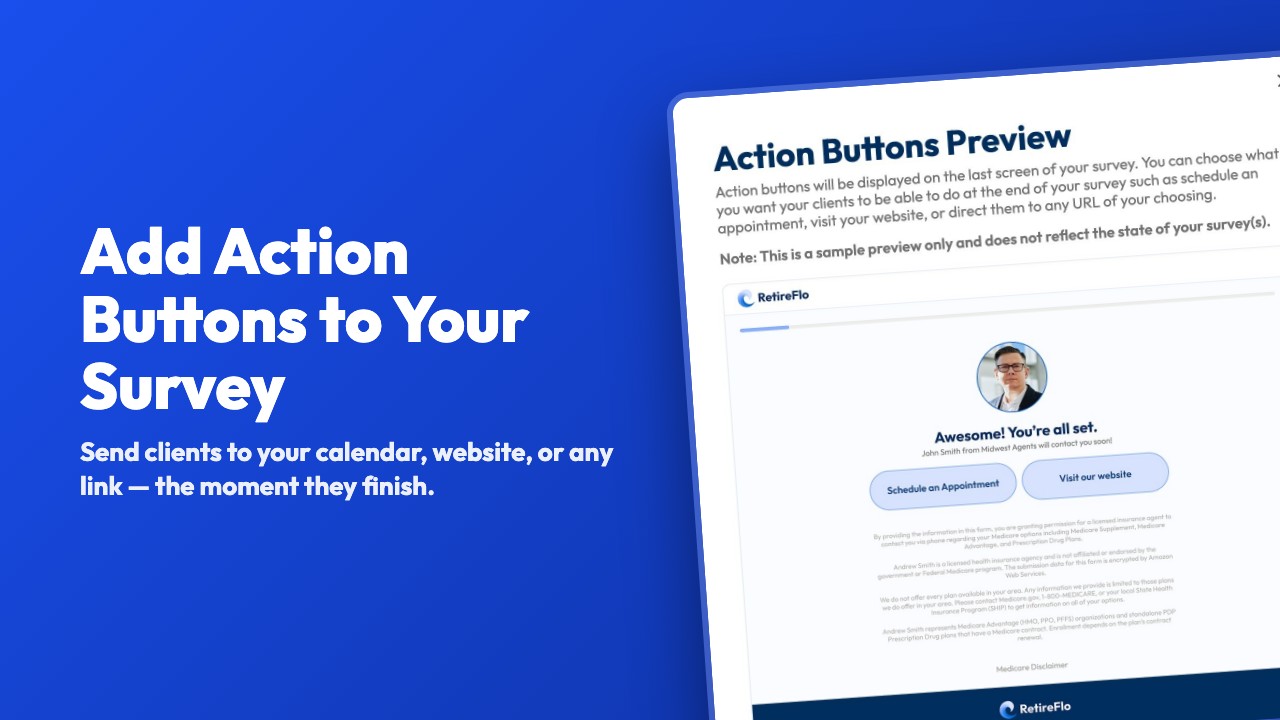
Your client just finished your survey and they're engaged — don't let that moment go to waste. Action buttons put up to two custom buttons on the last screen of your survey, pointing anywhere you like: your Calendly (or any calendar tool), your website, a YouTube video you want them to watch — any link at all. Here's how to set them up in about five minutes.
Go to your RetireFlo Dashboard
Log in at RetireFlo.com — you'll land on your Dashboard with your surveys listed under Your surveys.
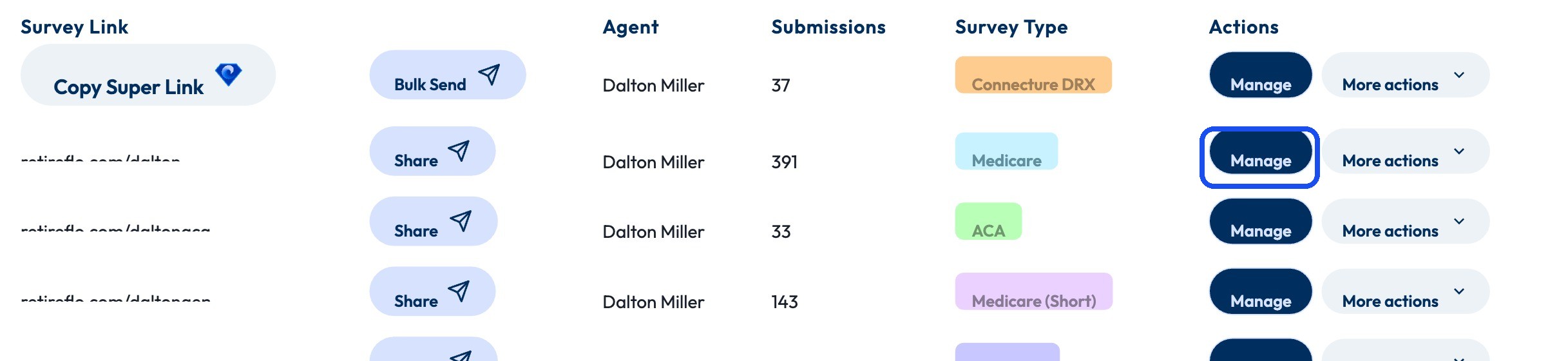
Press “Manage” next to the survey
Find the survey you want to add buttons to and click Manage on the right side of its row. (Action buttons are set per survey, so if you run several, repeat this for each one.)
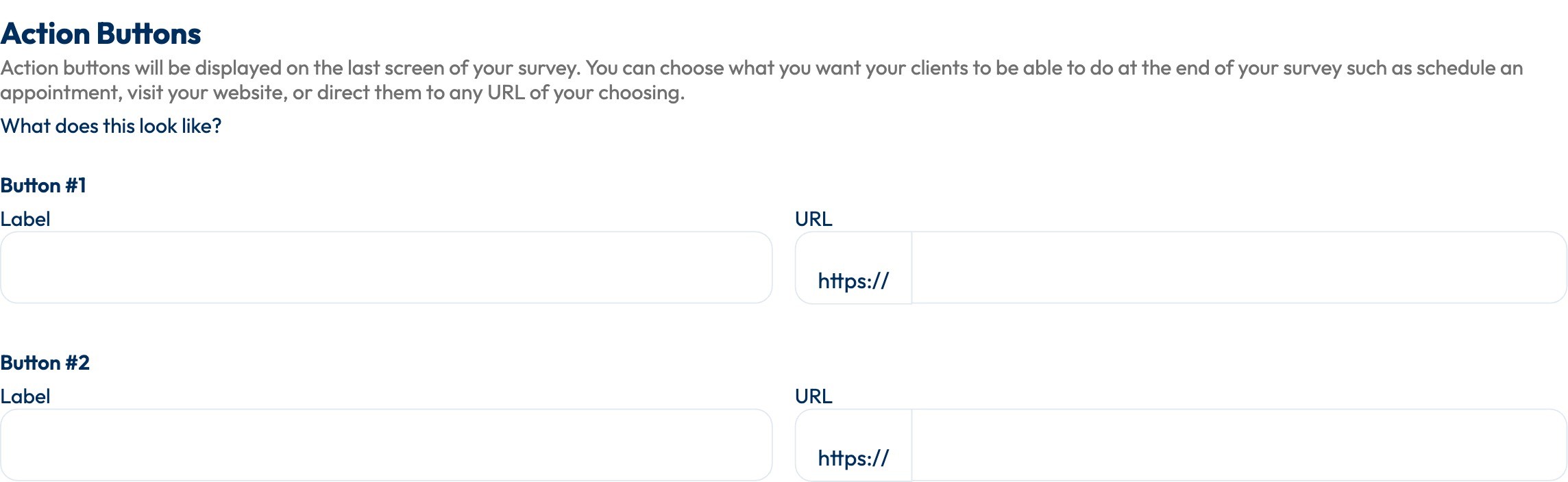
Scroll down to the Action Buttons section
On the Edit Survey page, scroll past Survey Information and Survey Appearance to Action Buttons. You'll see two slots — Button #1 and Button #2 — each with a Label and a URL. Curious what it'll look like? Click “What does this look like?” for a live preview.
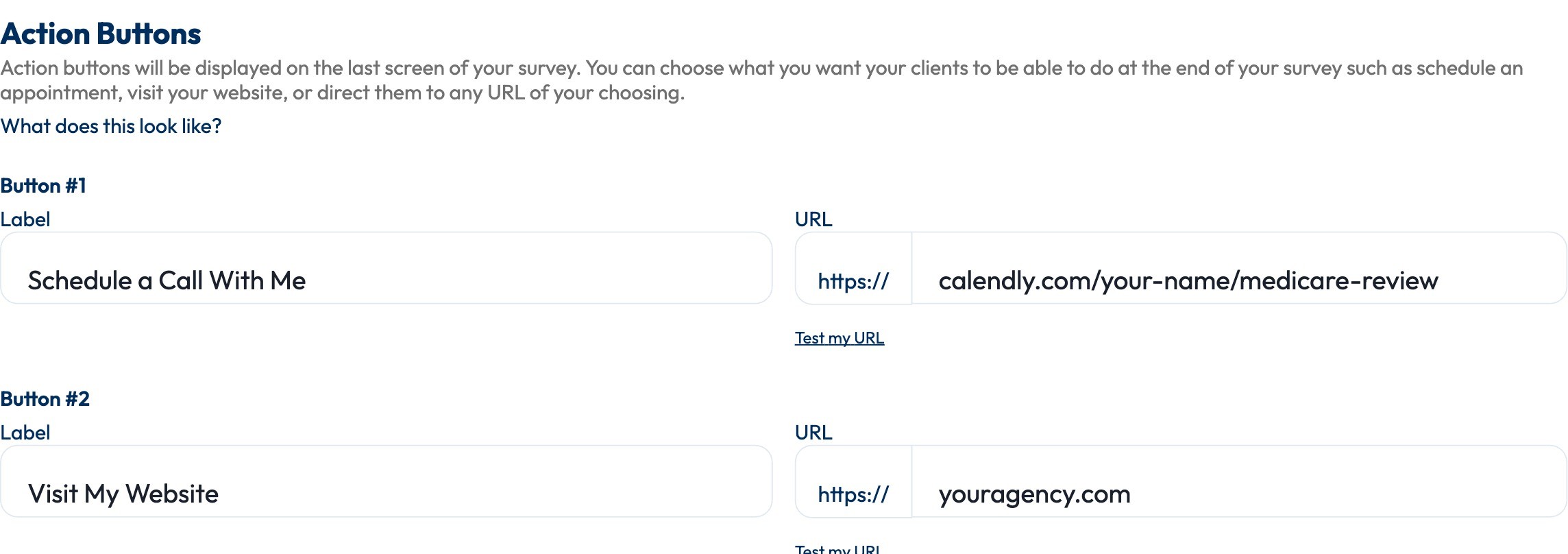
Title your button and add the link
The Label is what your client sees on the button — make it an action, like “Schedule a Call With Me” or “Visit My Website.” The URL is where it sends them; the https:// is already filled in, so just paste the rest. Once you've entered a link, a Test my URL link appears — click it to make sure it opens the right place.
Save your changes
Scroll back up (or down) and hit Save changes. That's it — the buttons appear on the final screen of every survey your clients complete from now on.

Good to know
- Any link works — Calendly, Acuity, your website, a Google review page, a YouTube video, a PDF, a Facebook page. If it has a URL, it can be a button.
- The best button is a calendar. A client who just answered your ten questions is warm — “Book your review” right then and there turns a submission into a scheduled appointment.
- Two buttons max — pick your two highest-value actions. Calendar first, website (or a review link) second is a strong default.
- Always click “Test my URL” before saving — a typo sends your clients to a dead page.
- Per-survey setting — buttons on your Medicare survey don't automatically show up on your ACA survey. Set them on each one you use.
Still stuck?
Grab a time with the RetireFlo team and we'll walk through it with you — or ask the community, someone's always online.