 RetireFlo Resources
← All tutorials
RetireFlo Resources
← All tutorials
Changing Your Survey's Color Theme
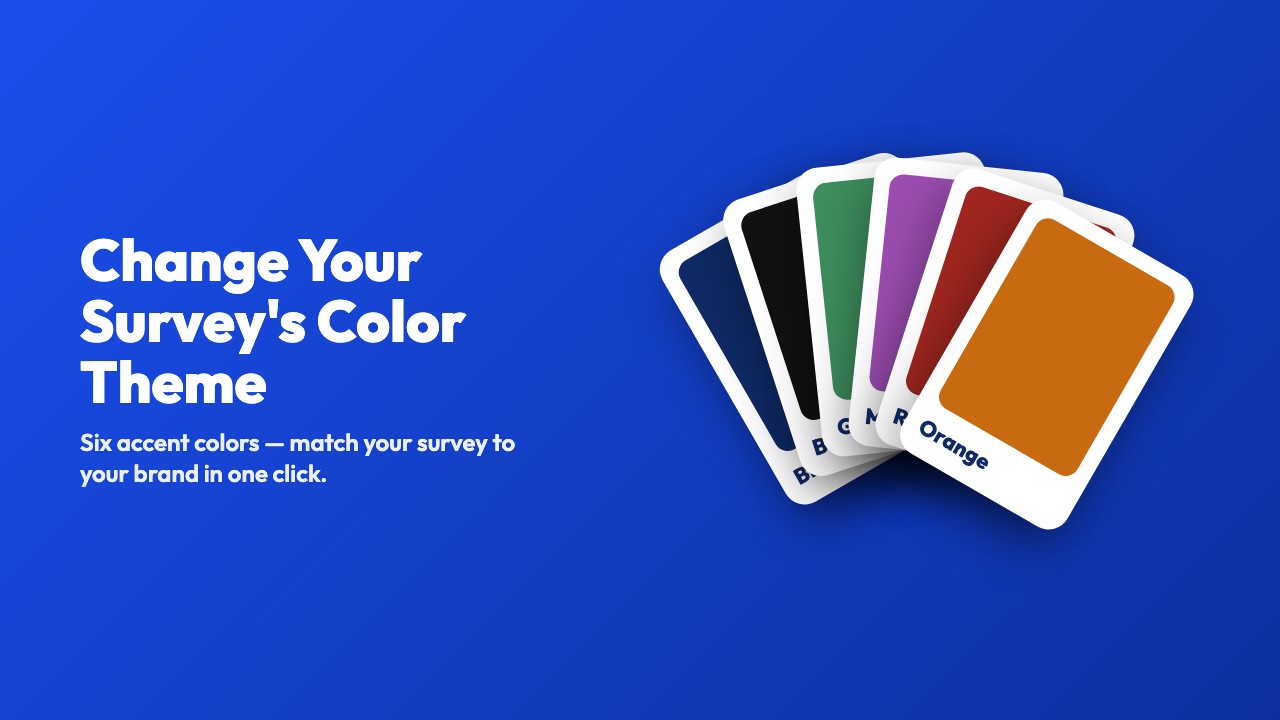
Your survey's accent color shows up on buttons, progress bars, and highlights throughout. Pick the one that matches your brand — blue is the default, and there are five more to choose from.
1
Go to your RetireFlo Dashboard
Log in at RetireFlo.com — your surveys are listed on the Dashboard under Your surveys.
2
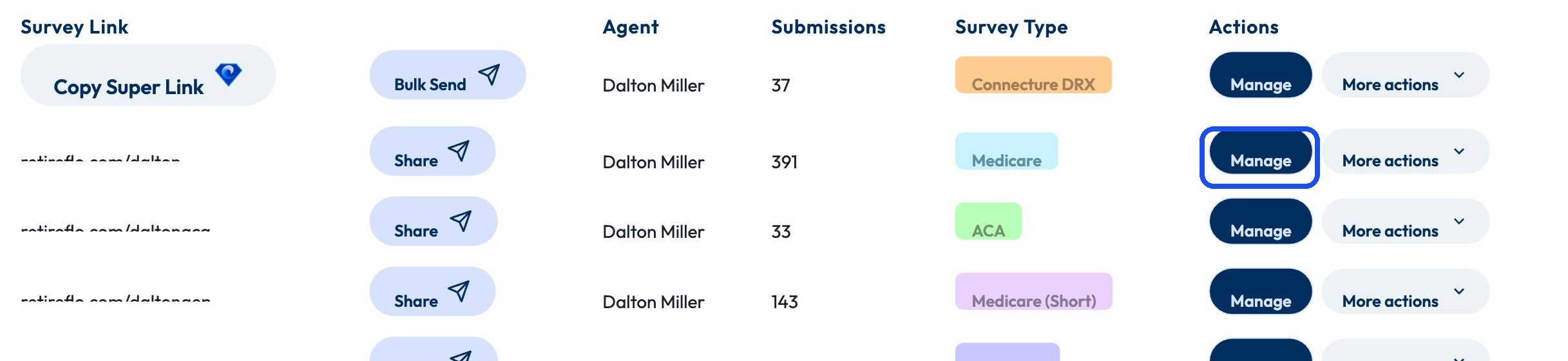
Press “Manage” next to your survey
Click Manage on the right side of the survey's row.
3
Pick an Accent Color under Survey Appearance
Scroll to Survey Appearance. You'll see six swatches — Blue (default), Black, Green, Magenta, Red, and Orange — each with a little preview of how buttons and text will look. Click the one you want; it gets a checkmark.

4
Save your changes
Hit Save changes at the top of the page and you're done.

Good to know
- Match your logo — if your brand is green, pick green; the survey and your logo will feel like one piece.
- When in doubt, Blue — the default is clean and reads as trustworthy. You can always change it later.
- Preview before you commit — the Preview survey button at the top of the page shows the new color live.
- Per-survey setting — each survey can have its own color, but most agencies keep them consistent.
Still stuck?
Grab a time with the RetireFlo team and we'll walk through it with you — or ask the community, someone's always online.