 RetireFlo Resources
← All tutorials
RetireFlo Resources
← All tutorials
Exporting Your RetireFlo Data to Any CRM
Every piece of data you've ever collected on RetireFlo can be exported into a CSV or Excel file and uploaded into whatever CRM you use. Watch the walkthrough, or skim the steps below.
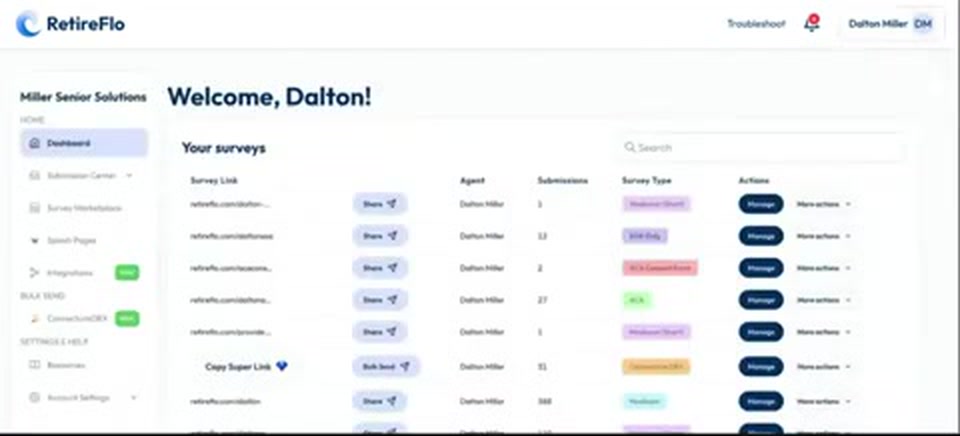
Log in to your RetireFlo dashboard
Head to retireflo.com and log in, or click your name in the top-right corner if you're already signed in. Everything starts from your dashboard.
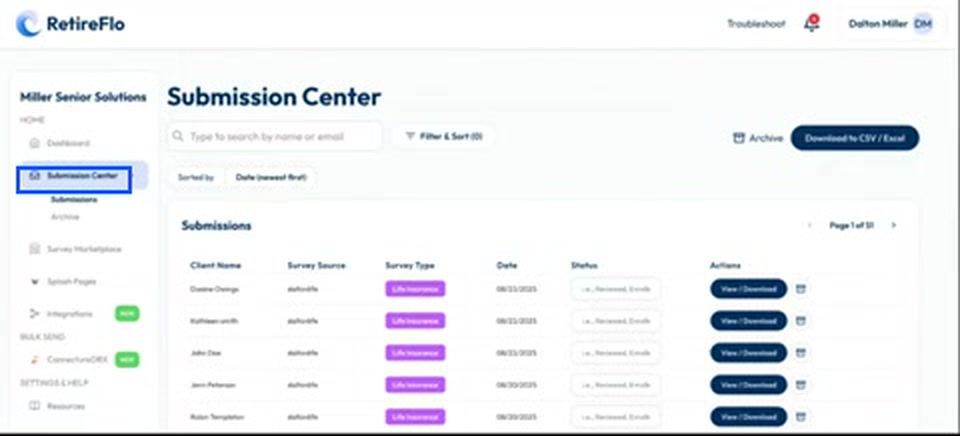
Open the Submission Center
Click Submission Center in the left-hand menu. This is where every submission you've ever received on RetireFlo lives — you can filter, search, and sort them here.
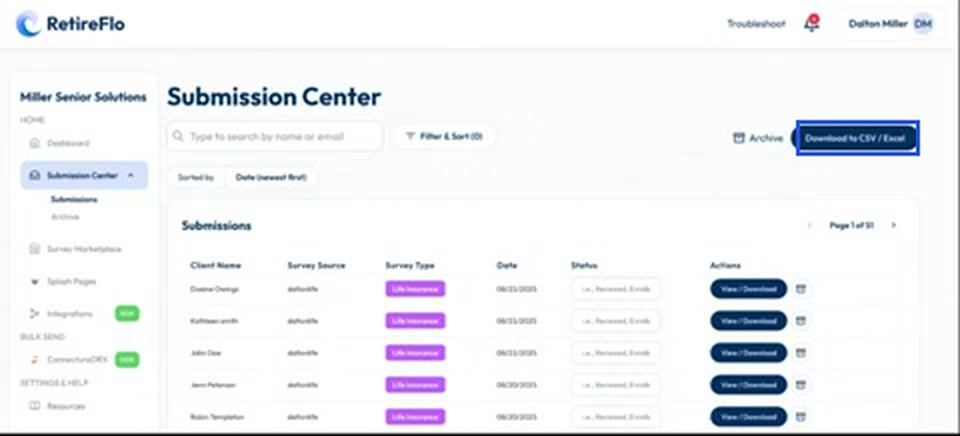
Click “Download to CSV / Excel”
Look to the top right of your submissions list for the big blue Download to CSV / Excel button.
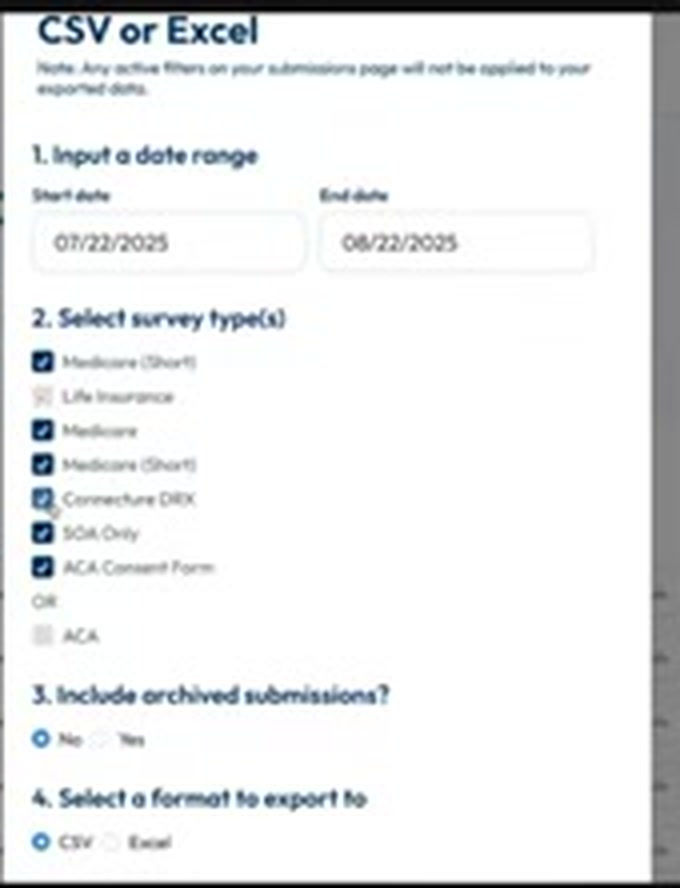
Choose your export options
A pop-up walks you through four quick choices:
1. Date range — last week, last month, or everything you've ever collected.
2. Survey types — Medicare, Life Insurance, ACA, SOA Only, and more; check the ones you want.
3. Include archived submissions? — yes or no.
4. Format — CSV or Excel. If you're not sure, Excel opens straight into a spreadsheet.
Download, then upload to your CRM
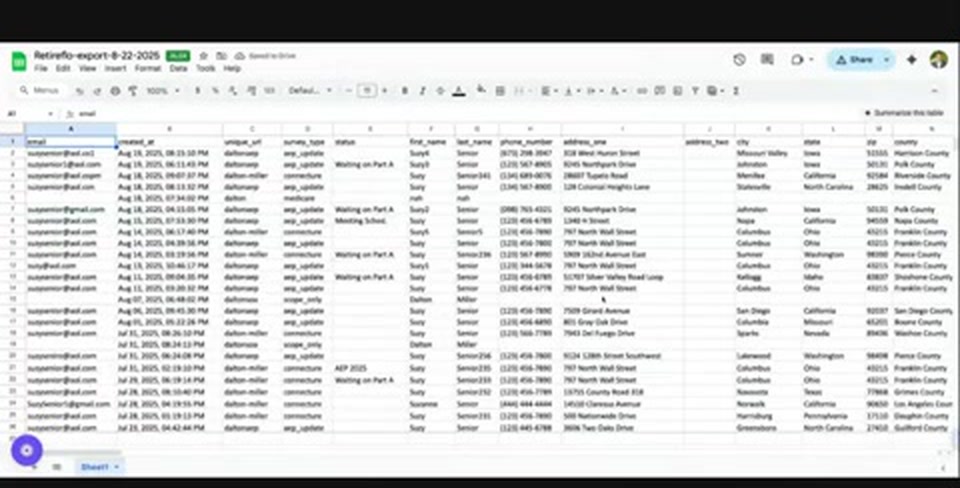
Hit export and the file lands in your browser's downloads. It contains everything: demographics (name, email, phone, address), drugs, doctors, pharmacies, plus scope and ACA consent details. Open it, delete any columns you don't want, and upload it using your CRM's import tool — or hand it to whoever manages your CRM.
Good to know
- Your CRM won't accept the file? Any CRM worth its salt imports CSV or Excel — check with whoever manages yours; most have a built-in uploader.
- Too many columns? It's your data — delete whatever you don't need (pharmacies, for example) before uploading.
- Best timing: export right after an enrollment period ends — like December 8, the day after AEP — so the whole season lands in one file.
- Using Compass, BOSS, CORE, IntegrityCONNECT, or MedicarePRO? Skip the export — there's a direct integration tutorial for each.
Still stuck?
Grab a time with the RetireFlo team and we'll walk through it with you — or ask the community, someone's always online.