 RetireFlo Resources
← All tutorials
RetireFlo Resources
← All tutorials
Integrating BOSS CRM with RetireFlo
Link your BOSS CRM to RetireFlo and keep every client record in sync.
Log in to BOSS CRM
Step one is the one thing we can't help you with: on another tab, log in to your BOSS for Agents CRM (provided by Pinnacle Financial Services) and keep that tab open. That's it — that's step one.
Log in at retireflo.com
On another tab, open up retireflo.com and log in. You'll land in your RetireFlo dashboard with all of your surveys — Medicare, ACA, Connecture, and the rest all sync with BOSS.
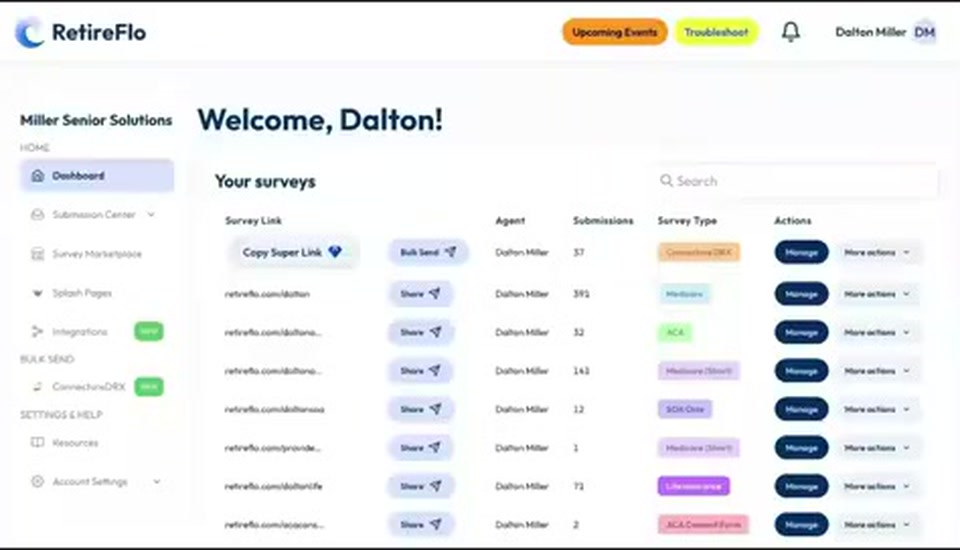
Select the Integrations tab
Once you're logged in to RetireFlo, simply select Integrations on your left sidebar.
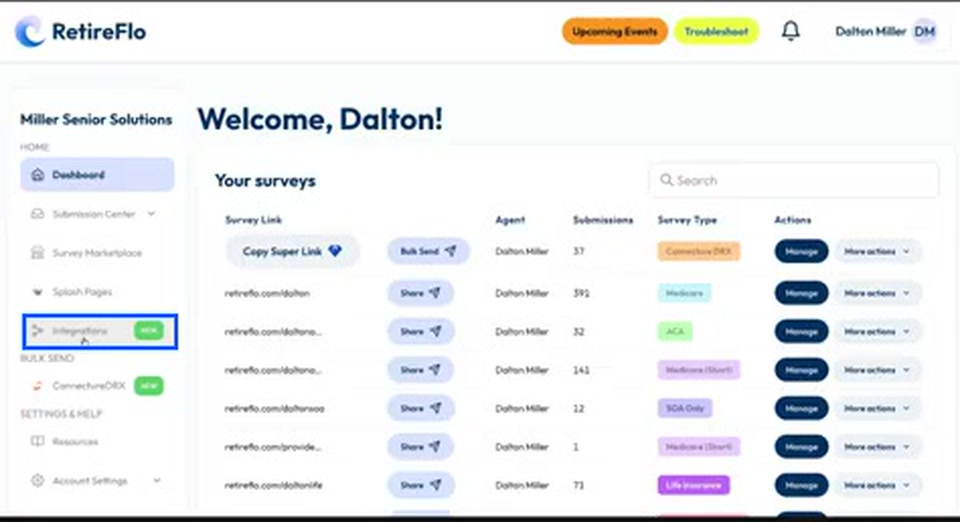
Find BOSS and press “Add new connection”
Scroll down the list of integrations to BOSS for Agents CRM — can't miss it, all caps BOSS. Press Add new connection.
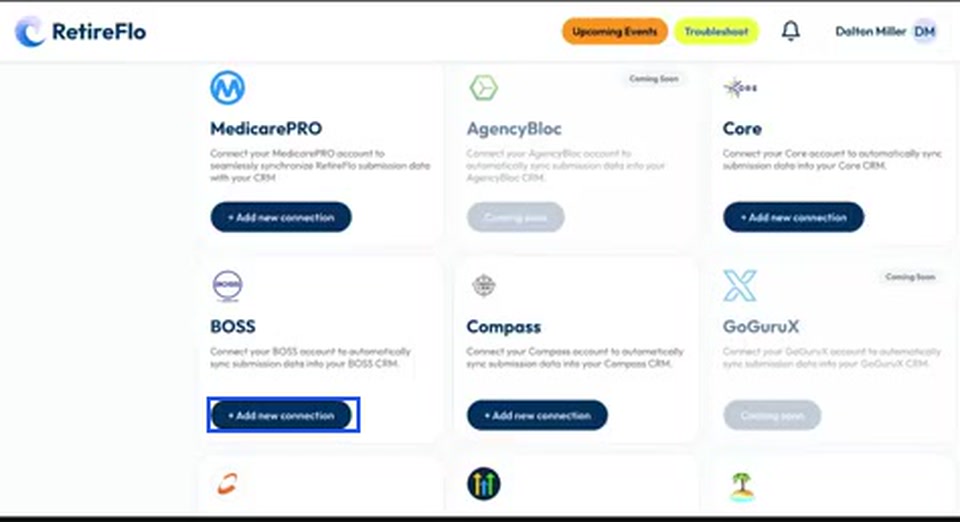
Press Authorize
Because you already did the hard part by logging in to BOSS, you'll get a nice screen asking “Do you want to authorize RetireFlo?” All you have to do is press Authorize.
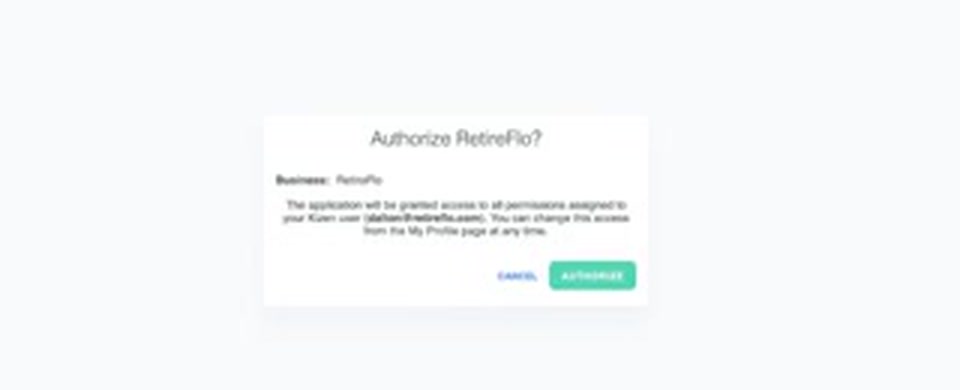
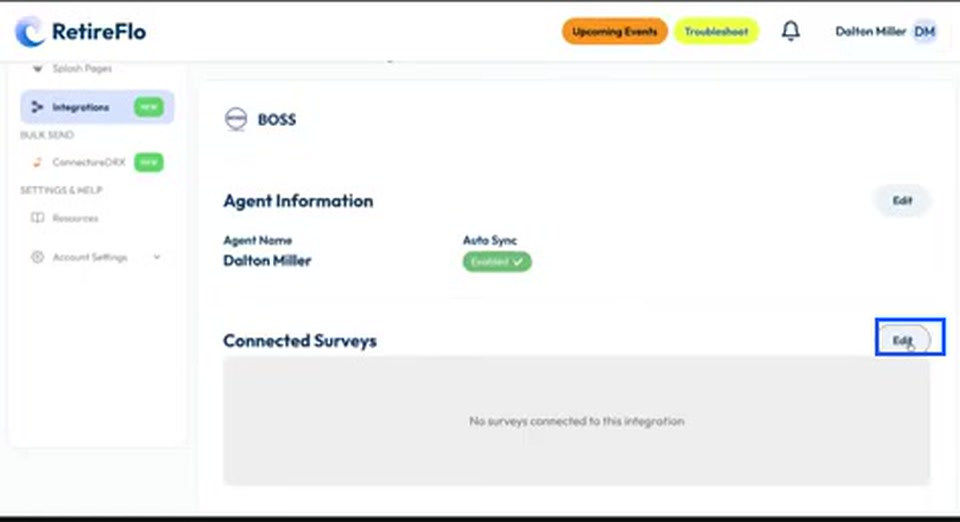
Press Edit next to Connected Surveys
You're not out of the woods yet — you still need to tell us which surveys you'd like to send into BOSS. Press Edit next to Connected Surveys.
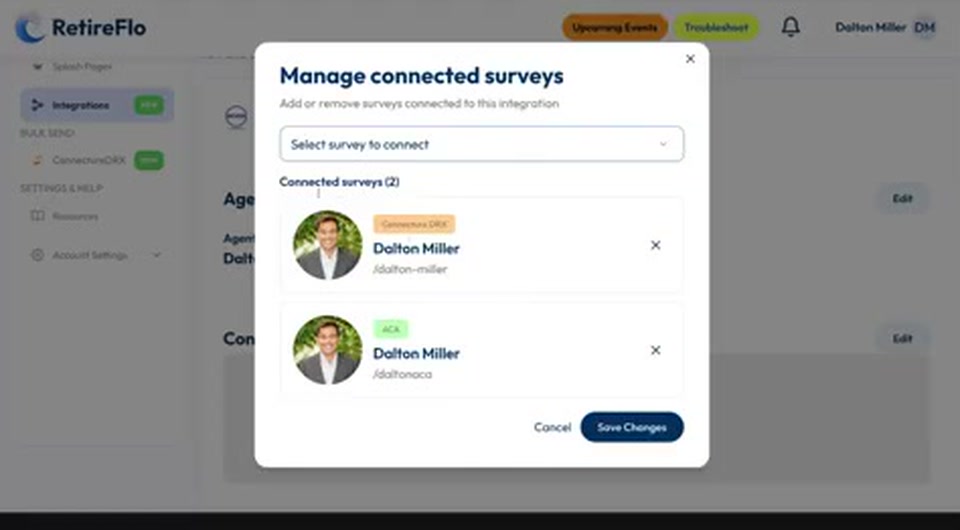
Select your surveys and press Save Changes
Select which surveys you'd like to connect — your Connecture survey, your ACA data, whichever you want flowing into BOSS — then press Save Changes. Boom, you're done. No more complicated than that.
Good to know
- Not signed in to BOSS? You'll have to sign in again before the authorize screen appears — which is why step 1 is to log in first.
- You pick which surveys connect. Maybe you have a downline agent's RetireFlo survey whose data you don't want landing in your BOSS account — you have that flexibility.
- How it works going forward: when a beneficiary completes one of your surveys, RetireFlo automatically asks BOSS whether you already have that customer. If they're new, we make a completely filled-out BOSS profile for you — drugs, doctors, hospitals, pharmacies, all the goods we collect — with no data entry required.
- No duplicates: we look for a matching first name + email, or first name + phone number. If either hits, we update the existing profile with fresh data instead of creating a duplicate.
Still stuck?
Grab a time with the RetireFlo team and we'll walk through it with you — or ask the community, someone's always online.