 RetireFlo Resources
← All tutorials
RetireFlo Resources
← All tutorials
How to Sign Up for RetireFlo Integrated with SunFire
This guide takes you from zero to a fully working SunFire setup: your RetireFlo account, your survey, the CRM Connect token that links the two, and your first client flowing straight into SunFire — ready to quote and enroll. About five minutes, start to finish.
Create or sign in to your RetireFlo account
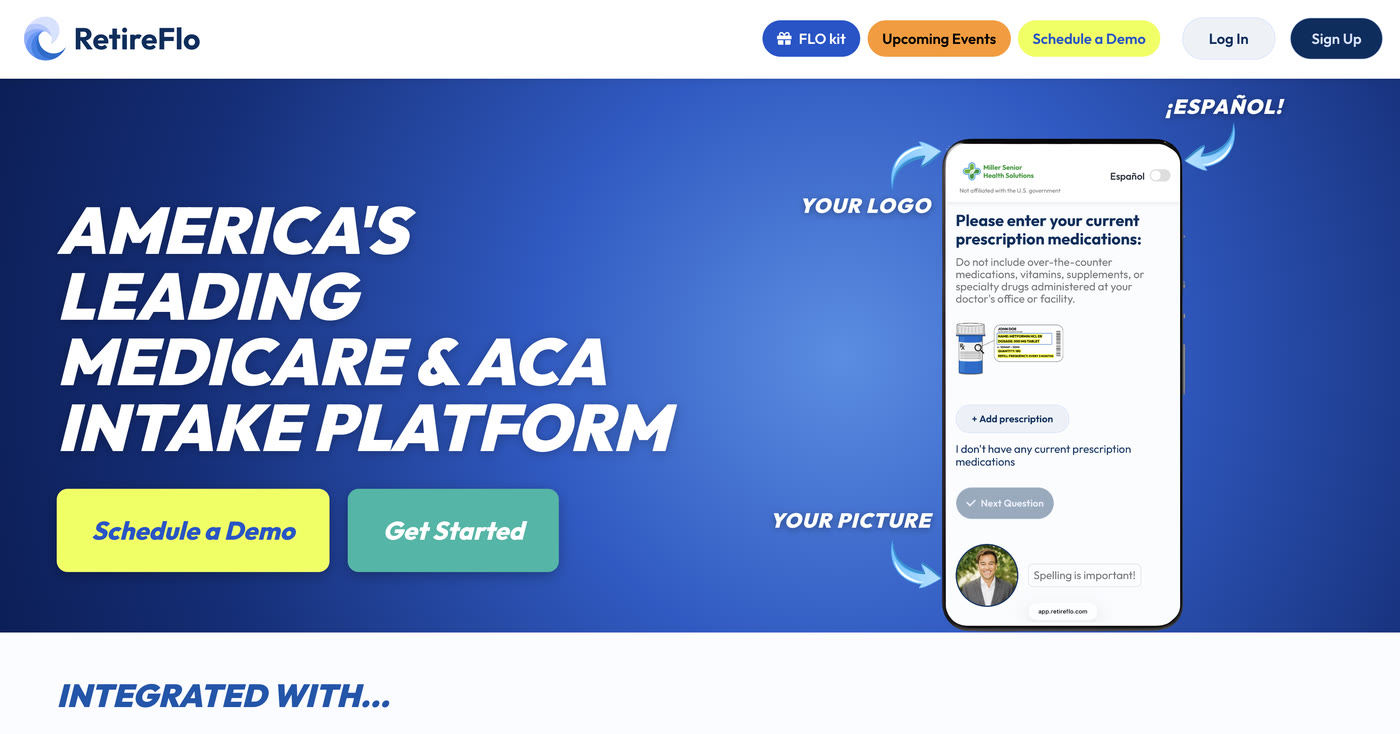
Head to RetireFlo.com and click Get Started (top right) to create your account — or Log In if you already have one.
Already have a survey with us? Skip ahead
If you already have a survey that collects Medicare information with RetireFlo, you're all set on the survey side. Jump straight to step 4 and connect SunFire.
Add a promo code
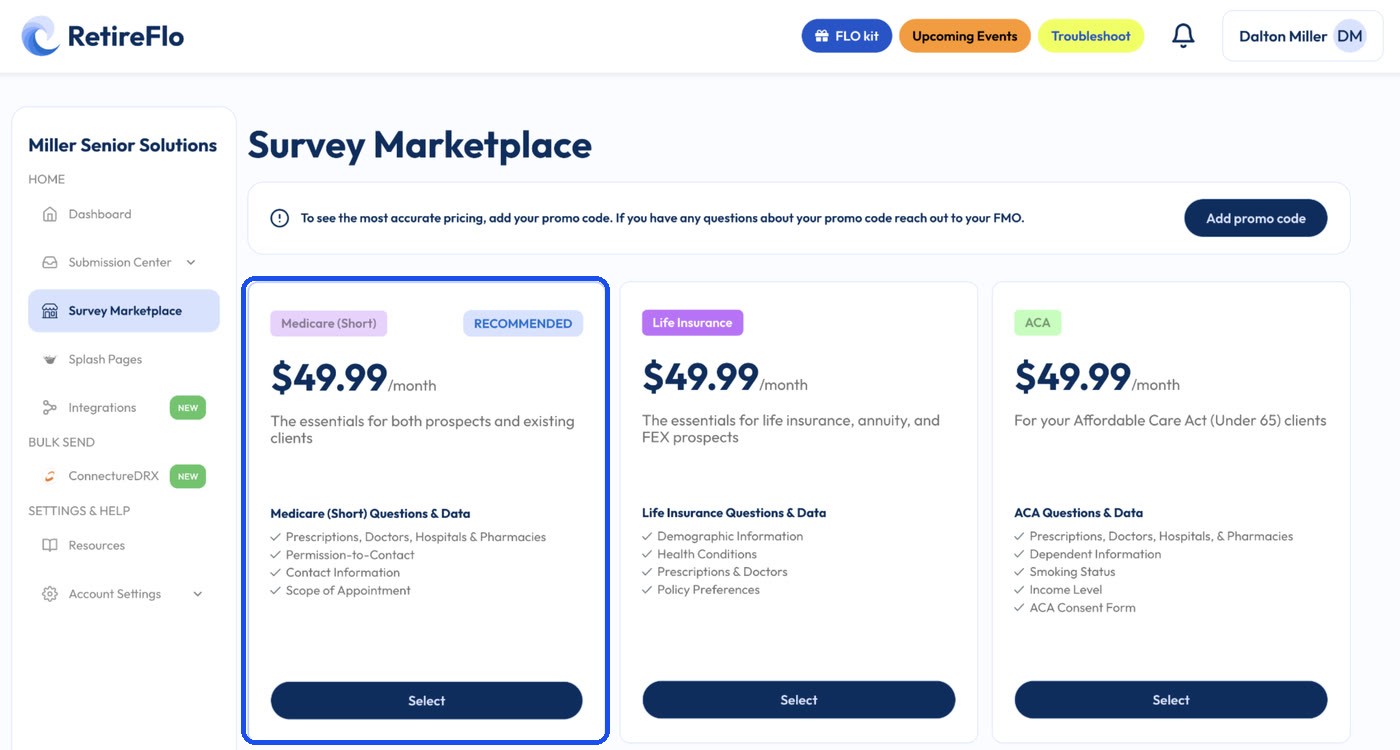
Open the Survey Marketplace from the left sidebar. At the top there's a banner with an Add promo code button — that's where discount codes go. You can also add one any time under Account Settings → Payment Settings, in the “Traditional Links Discount Code” box.
A little gift for reading this far: 20% off
Click Add promo code and enter RF20 — all caps — before you purchase. It takes 20% off your RetireFlo subscription.

Purchase your survey
In the Survey Marketplace, select the Medicare (Short) survey — prescriptions, doctors, hospitals & pharmacies, permission to contact, contact information, and scope of appointment. It's the survey that syncs to SunFire. Choose monthly or annual; it's active immediately.
In SunFire, open your Profile
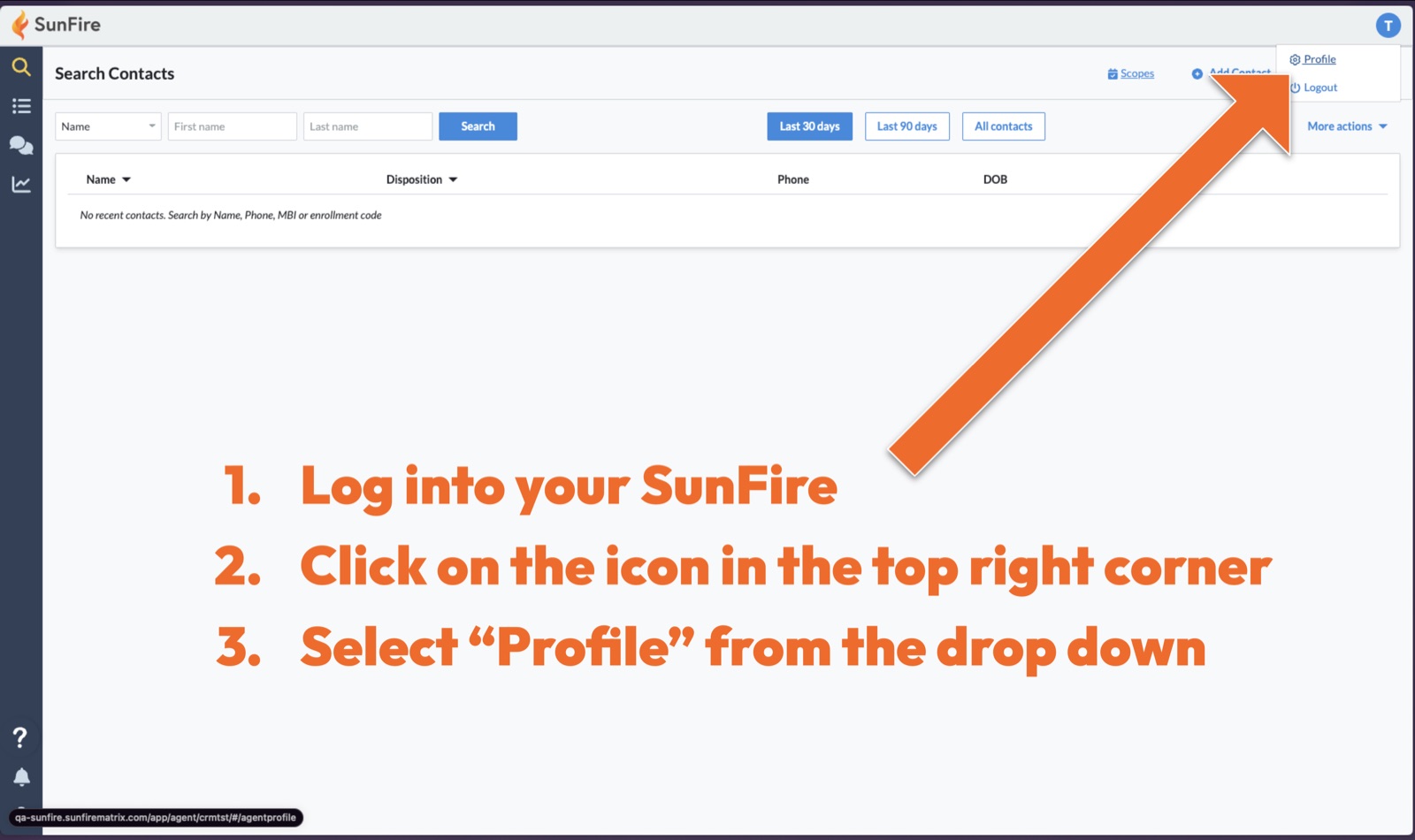
Open a new window (keep RetireFlo handy in this one — you'll be back in a minute) and log into your SunFire account. Click the icon in the top right corner and select Profile from the drop down.
Generate your CRM connect code
Scroll down your Profile page to the CRM Connect section and press Generate your CRM connect code.
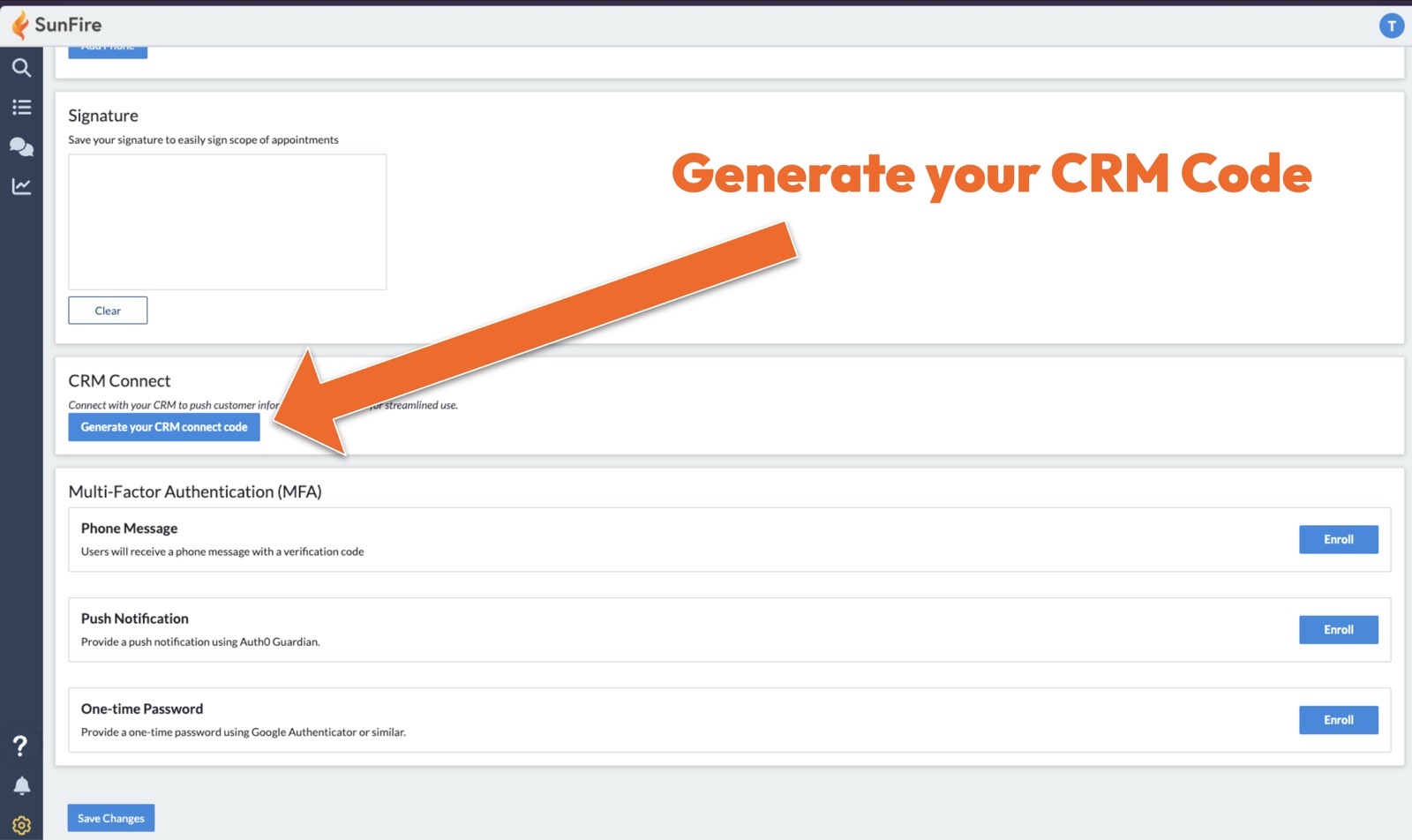
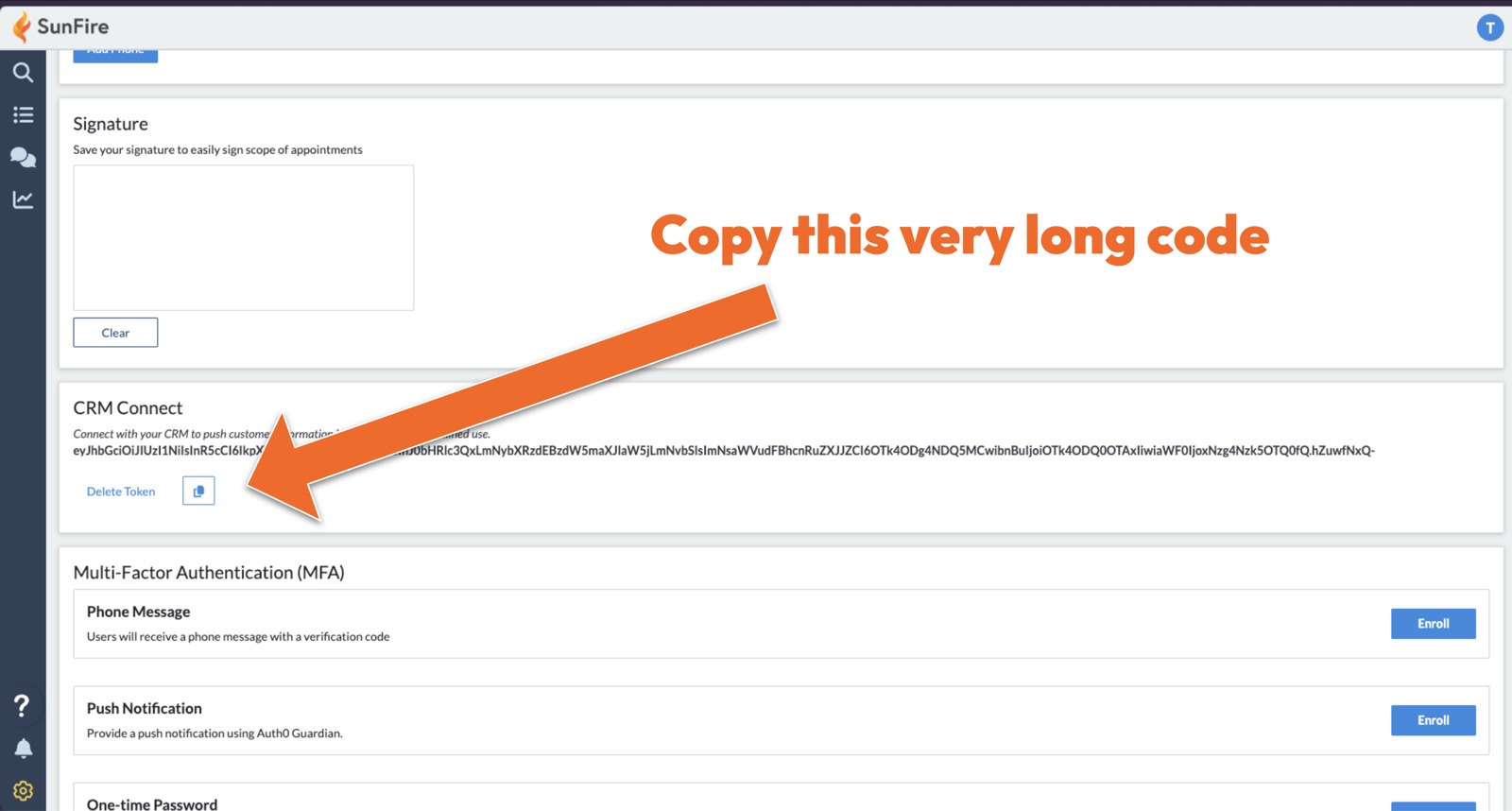
Copy the (very long) code
SunFire generates a long token right there in the CRM Connect section. Press the copy button next to it — you'll paste this into RetireFlo in the next step.
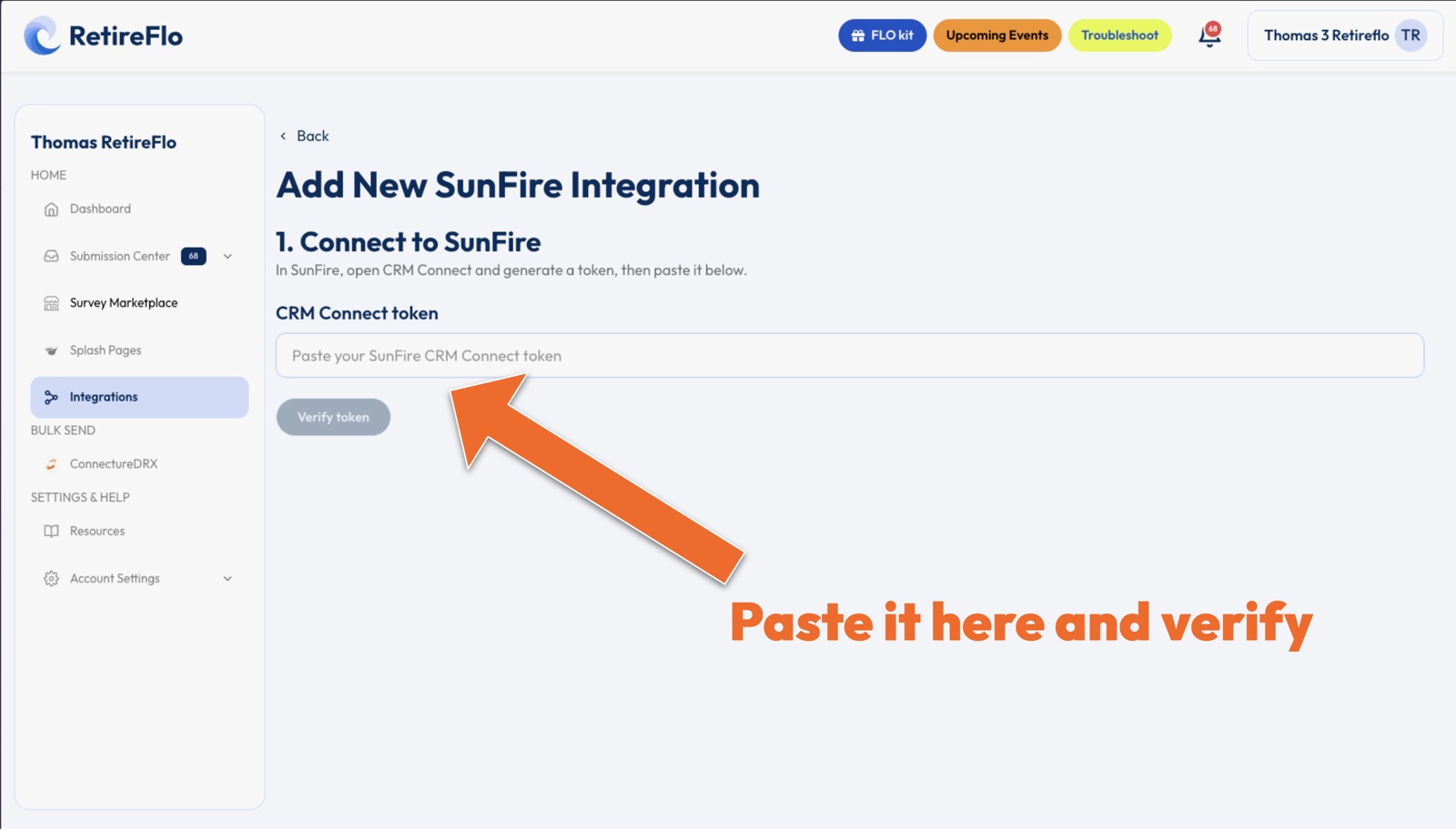
Paste the token into RetireFlo and verify
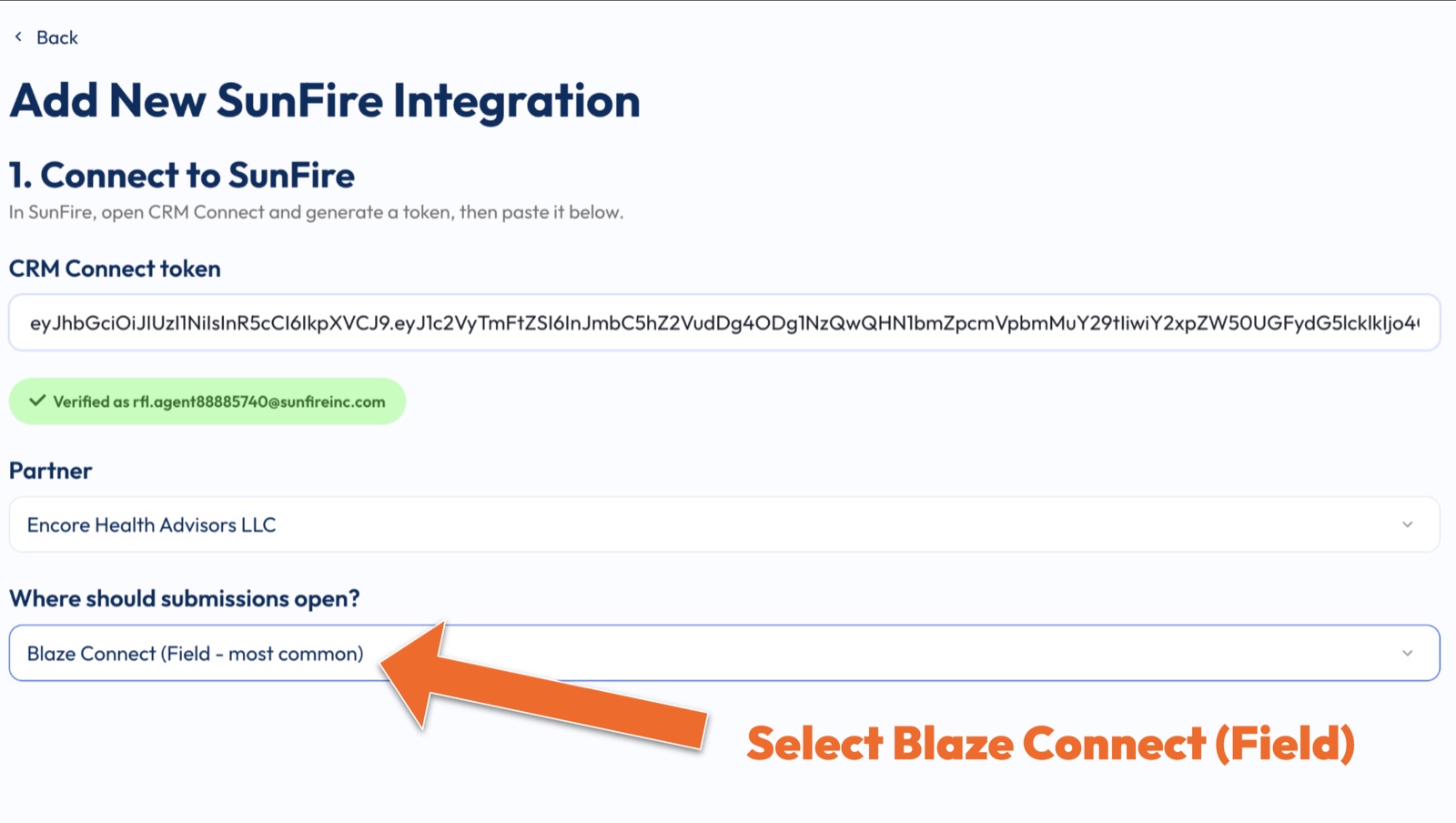
Back in RetireFlo, click Integrations in the left sidebar, find SunFire, and press + Add new connection. Paste your token into the CRM Connect token box and press Verify token. You'll see a green check with your SunFire account once it's verified.
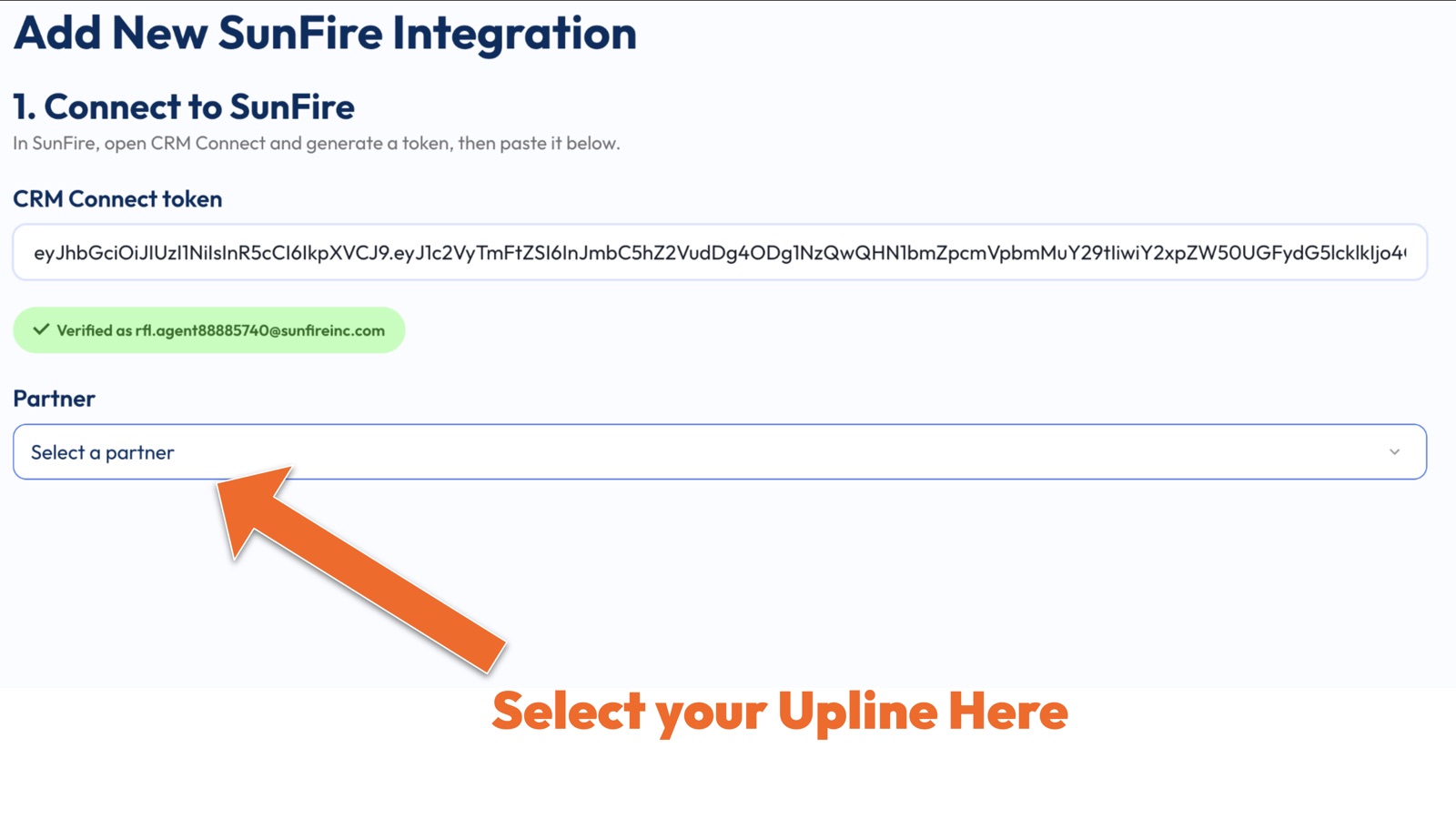
Select your upline
Once your token verifies, a Partner drop down appears. Select your upline from the list.
Choose where submissions open
Under “Where should submissions open?” select Blaze Connect (Field) — it's the most common choice and the right one for almost everyone. If your agency runs SunFire differently, pick the option that matches your setup.
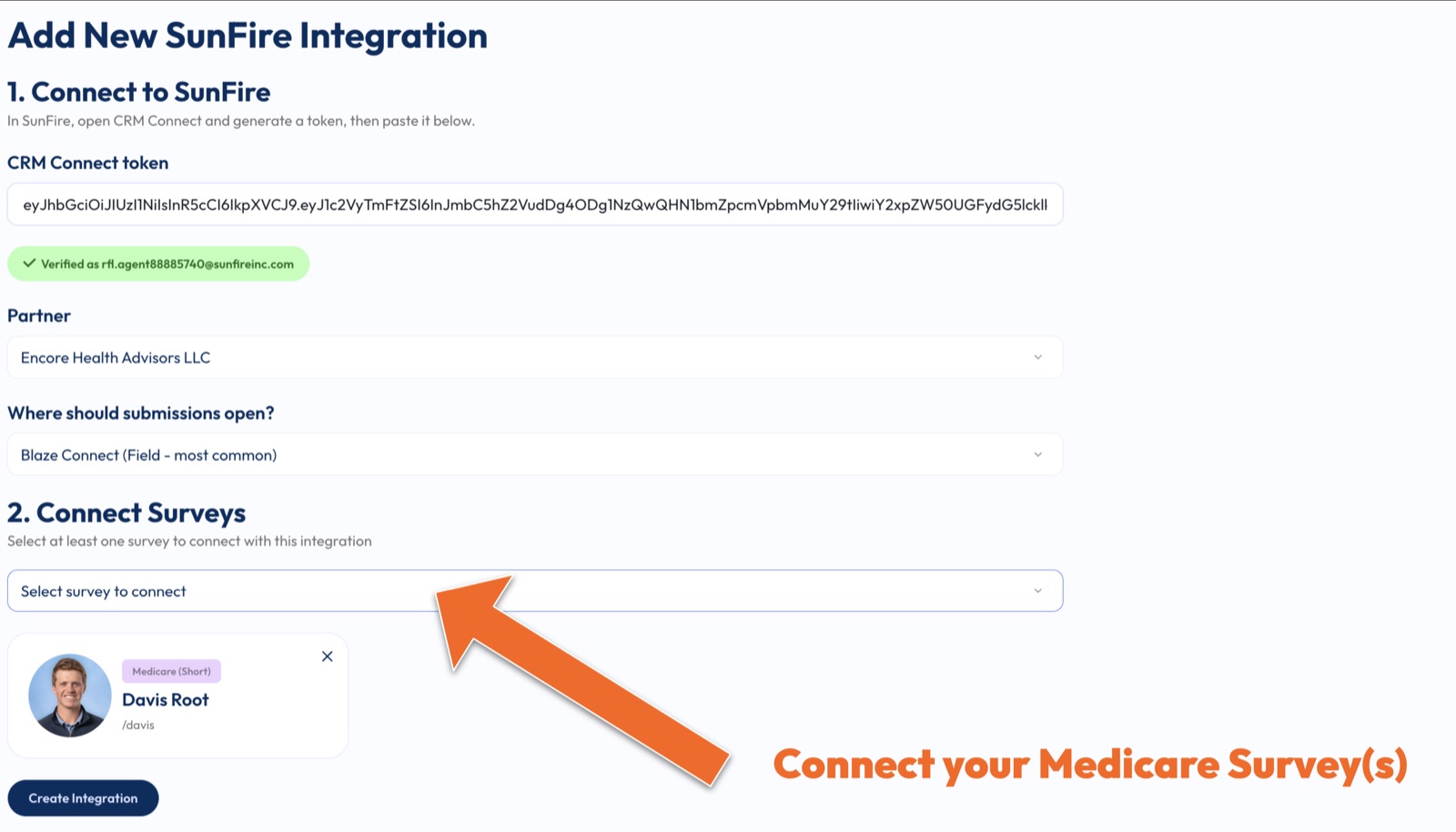
Connect your Medicare survey(s) and create the integration
In Connect Surveys, select the Medicare survey(s) you'd like to sync — at least one — then press Create Integration. That's it, you're live.
Good to know
- More than one SunFire? If you have another instance of SunFire you'd like to integrate with, just run this same process again for that account.
- Stack your integrations: you can have multiple integrations at once — SunFire alongside other enrollment platforms and CRMs. One survey, everywhere you work.
- Treat the token like a password. Your CRM Connect code links your SunFire account — don't share it. You can delete it in SunFire's CRM Connect section any time and generate a fresh one.
- Blaze Connect (Field) is the most common answer for where submissions open — when in doubt, pick that, or ask your upline how your agency runs SunFire.
- Unlimited sends — one subscription, as many clients and prospects as you like.
Still stuck?
Grab a time with the RetireFlo team and we'll walk through it with you — or ask the community, someone's always online.