 RetireFlo Resources
← All tutorials
RetireFlo Resources
← All tutorials
Adding or Changing Your Agency Logo
A custom logo makes your survey look like it came from your agency — not a generic form. Upload yours once and every survey link you send carries your brand.
Go to your RetireFlo Dashboard
Log in at RetireFlo.com — your surveys are listed on the Dashboard under Your surveys.
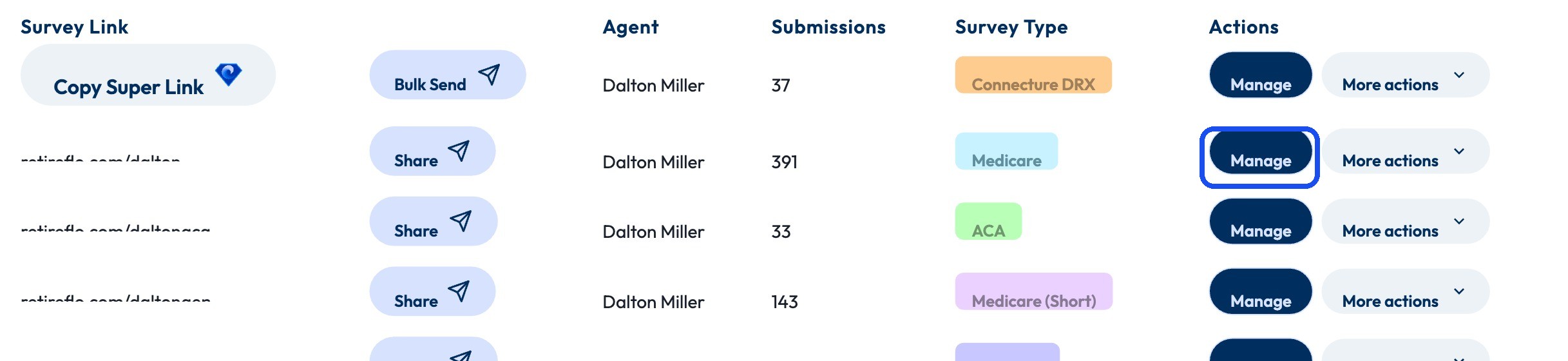
Press “Manage” next to your survey
Click Manage on the right side of the survey's row.
Click “Update” under Custom Agency Logo
It's right below Headshot under Survey information. Click Update, choose your logo file from your computer, and it uploads. Remove takes it off if you'd rather show none.
File size limit: 5 MB. Logo files from a designer are often huge print-quality versions. If yours won't upload, open the logo on your screen and take a screenshot of it, then upload the screenshot — it keeps the quality you need for the survey and lands well under 5 MB.

Save your changes
Hit Save changes at the top of the page and you're done.

Good to know
- Why the 5 MB limit? Smaller images mean your survey loads fast for beneficiaries — many of them are on phones or slower connections, and a snappy survey is a completed survey.
- Wide logos look best — a horizontal logo (name next to your mark) fills the space nicely; a stacked or square logo works too, just smaller.
- Use a PNG with a transparent background if you have one — it sits cleanly on the survey's white header. A JPG on white works fine as well.
- Not sure where your logo file is? Ask whoever made your business cards or website — they'll have the original.
- Per-survey setting — set it on each survey you run.
Still stuck?
Grab a time with the RetireFlo team and we'll walk through it with you — or ask the community, someone's always online.