 RetireFlo Resources
← All tutorials
RetireFlo Resources
← All tutorials
Signing and Managing the Scope of Appointment
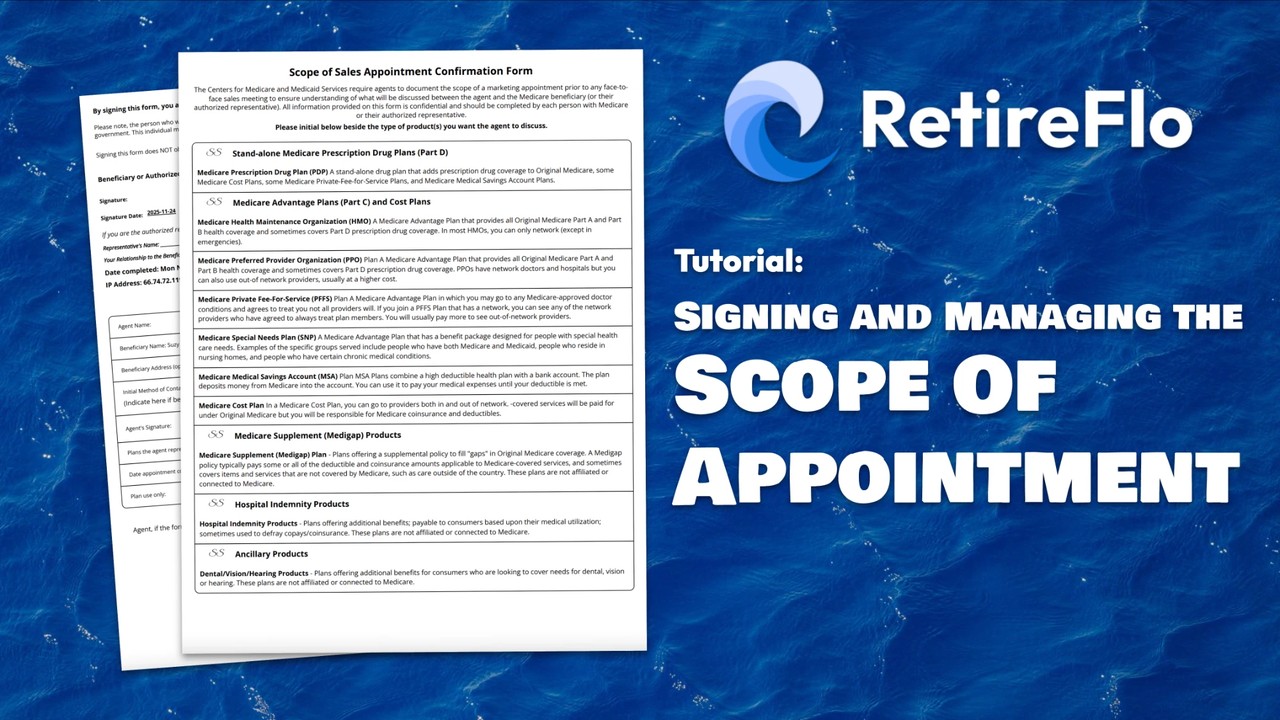
CMS requires agents to document the scope of a marketing appointment before any face-to-face Medicare sales meeting. RetireFlo builds the Scope of Appointment right into your survey, so the paperwork takes care of itself: your client signs their portion from the link you sent, you sign yours in the Submission Center, and the finished form stays stored with the submission. Here's the whole flow.
Your client signs first — inside the survey
Every Medicare survey includes the Scope of Appointment, and we built it to be genuinely easy for seniors: big buttons, plain language, one question at a time. Your client opens the link you sent, completes their portion, and signs — right from their phone or computer, usually in just a few minutes. No printer, no PDF attachments, no chasing.

Find the submission in your Submission Center
When a scope still needs your signature, the submission's row in the Submission Center shows a Sign button on the right. Click it.

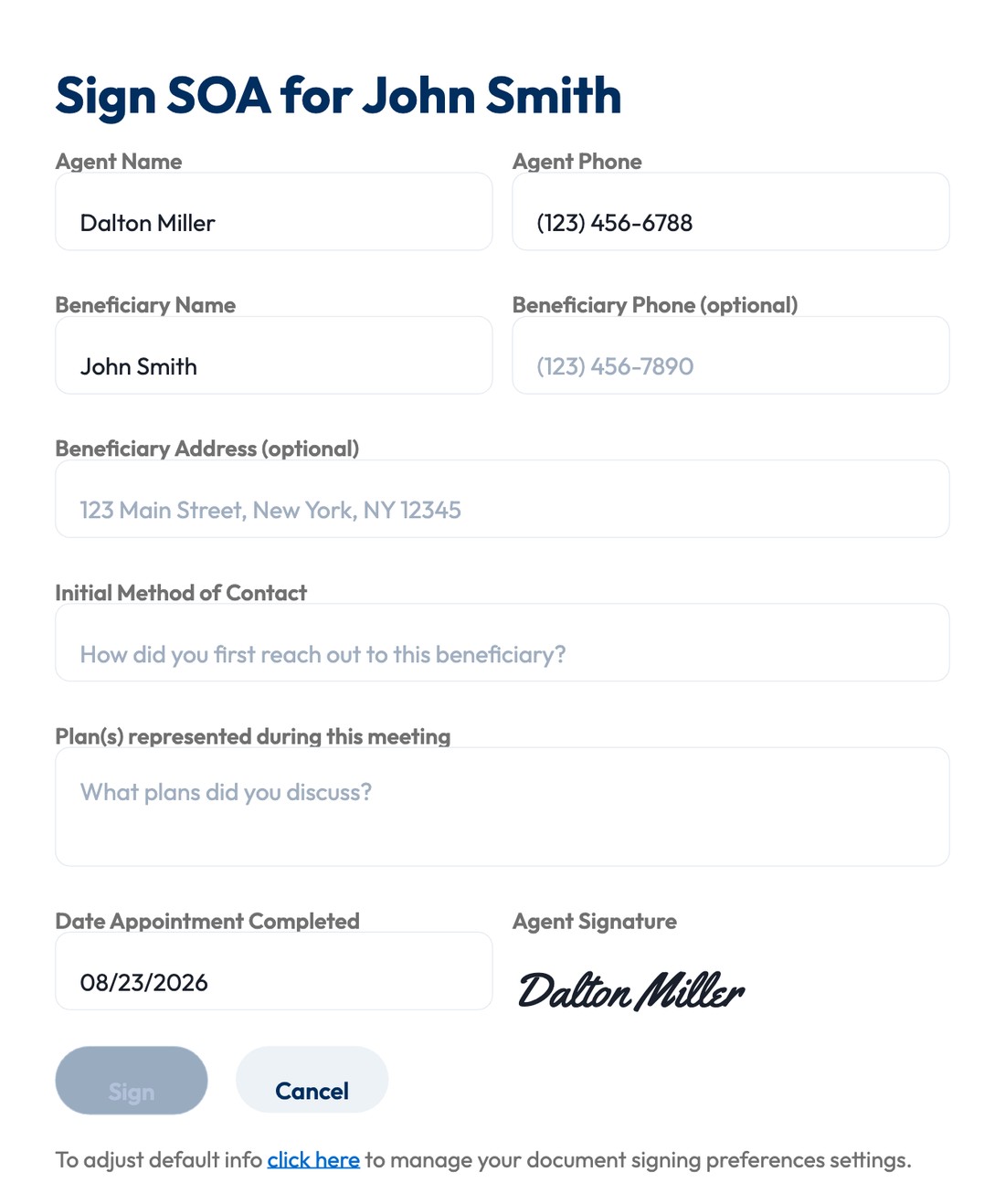
Complete your portion and press “Sign”
Your name, phone, and signature are pre-filled from your defaults, and the beneficiary's name is already there. Add the initial method of contact, the plan(s) represented during the meeting, confirm the appointment date, and press Sign. Your signature is generated automatically — no drawing with a mouse.
One handy detail: the agent name is editable. If someone else conducted the meeting with the beneficiary — you were out sick that day, or a downline agent took the appointment — just change the name to whoever actually held it before signing.
Optional (but nice): set your signing defaults once
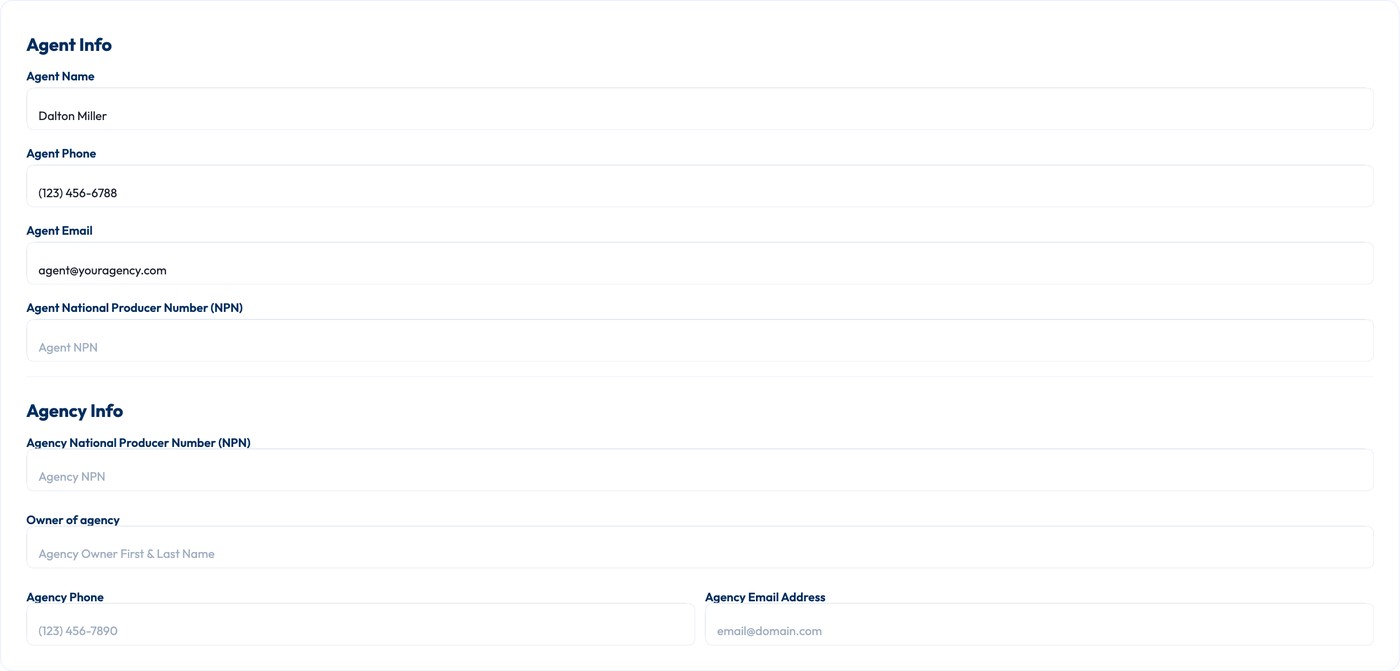
Tired of rewriting the same info on every scope? You don't have to. Under Account Settings → Document Signing, fill in your agent info — name, phone, email, NPN — and your agency info once, and it populates automatically every time you sign an SOA or consent form. Signing drops from minutes to seconds.
Where it's stored (and how to get it)
The signed Scope of Appointment lives with the submission, in your Submission Center. Press View / Download on any row to pull the full record — signed scope included — whenever a carrier, a compliance review, or your own files call for it.
Good to know
- Covered before you knock: because RetireFlo collects the scope when your client completes the survey, it's documented ahead of your appointment — no scrambling for paperwork at the door.
- A fresh scope every year: CMS regulations state SOAs are valid for one year from the date they're signed — they don't carry over season to season. Send a fresh survey each year and the new SOA comes back with it.
- Integrations: an unsigned copy of the SOA is delivered to ConnectureDRX, MedicarePRO, and GoHighLevel; it does not transfer to HealthSherpa for Medicare, IntegrityCONNECT, or AgencyBloc. Either way, you should always sign it here in RetireFlo.
- Stored for the long haul: we keep the signed SOA in your RetireFlo Submission Center for at least 10 years — download it any time.
- Need just the scope? There's an SOA Only survey type that collects nothing but a signed Scope of Appointment — same signing flow on your side.
Still stuck?
Grab a time with the RetireFlo team and we'll walk through it with you — or ask the community, someone's always online.