 RetireFlo Resources
← All tutorials
RetireFlo Resources
← All tutorials
How to Send RetireFlo
The complete guide to sending RetireFlo to your clients — this is the heart of the whole system, so grab a coffee and settle in.
Start at retireflo.com and copy your survey link
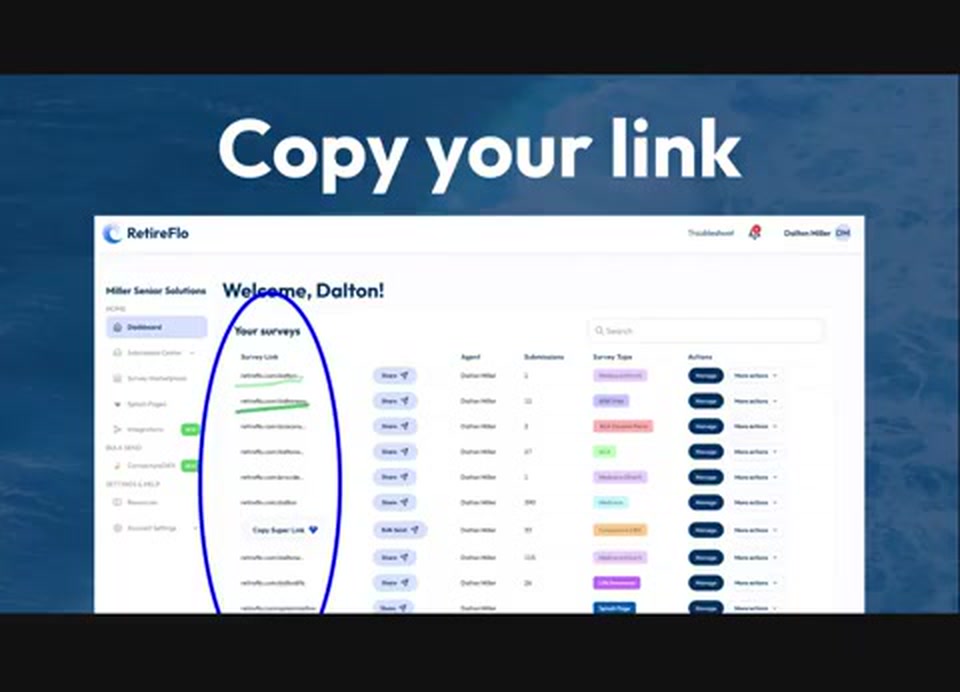
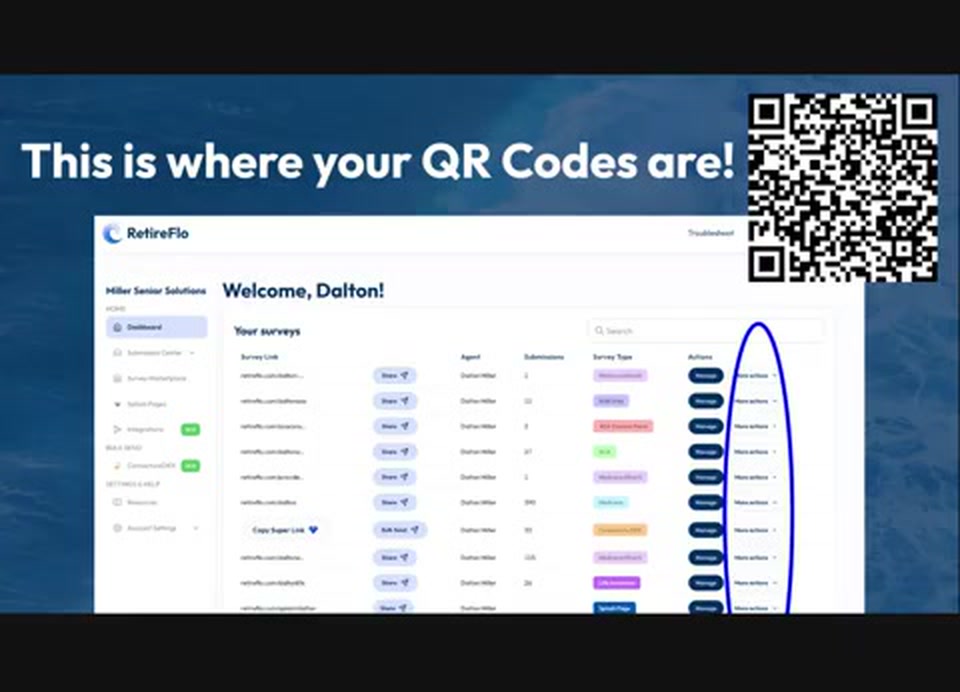
Head to retireflo.com — the center of the universe — and log in. You'll land on your dashboard ("Welcome, your name"), and this is where all of your survey links live. Many agents have just one; others also have ACA or life insurance surveys on separate links. To copy a link, just click on it — it copies automatically — or press Share, which has a copy option too. To paste it later, it's Ctrl+V (or Cmd+V for Apple users).
Paste your link anywhere you reach clients
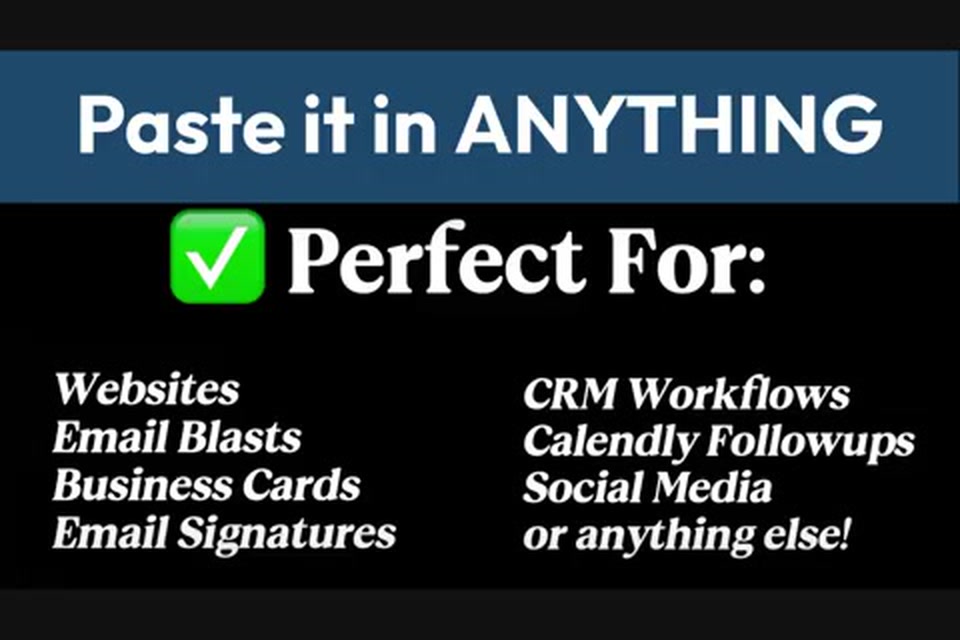
That link can go in anything: a button on your website, an email blast through Constant Contact or Mailchimp, a plain Outlook or Gmail email, your business card, your email signature, CRM workflows, Calendly follow-ups, or a social media post. A simple text works great: "Hi Susie! Looking forward to our appointment next Thursday. Please click here" — with your link. One thing to know: the RetireFlo team can't send it for you. You know your clients, so you write your own emails and texts — RetireFlo provides the survey link, and the key is to include it.
Spell your link exactly right
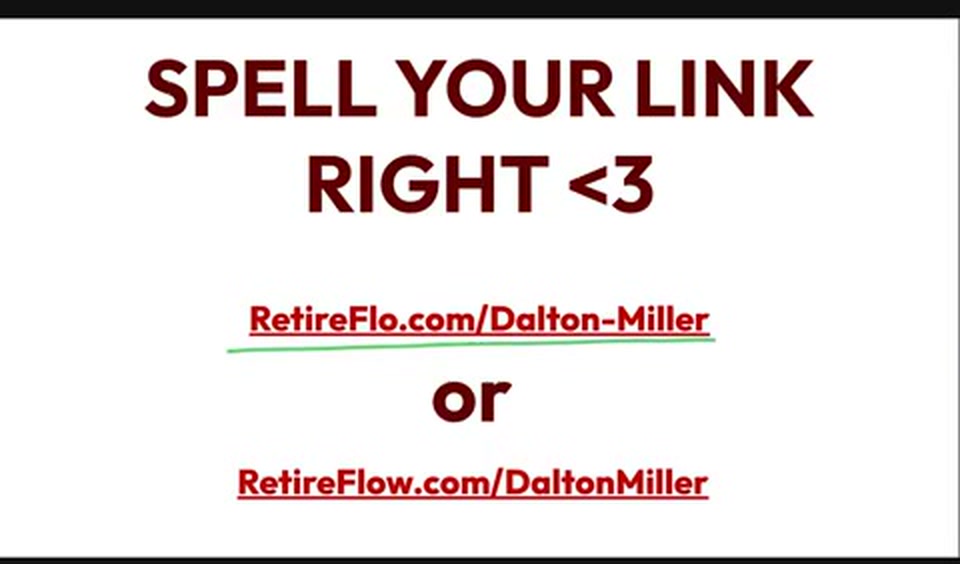
ESPN.com has the football scores — ESPQ.com does not. Your survey link works the same way: one wrong character or a missing dash and your client lands nowhere. You actually pick your link yourself, and it's listed right on your dashboard if you're ever unsure. You can change it under Manage if you don't like it — but be careful: anyone holding the old link won't get through once you change it.
Hyperlink it in your emails
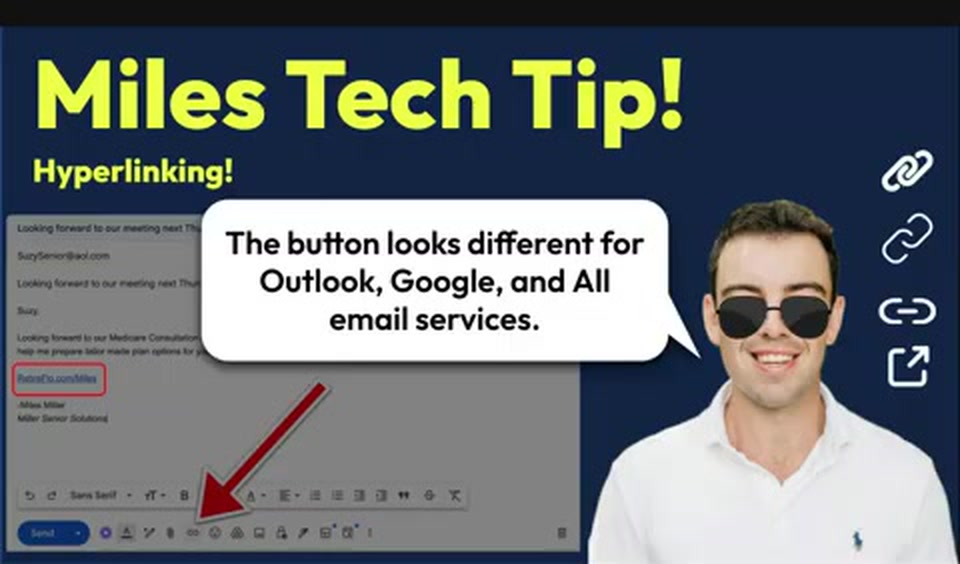
Hyperlinking sounds high-tech; it isn't. After you type out your email, highlight your link and click the hyperlink button — it looks different in Gmail, Outlook, and Yahoo, but every email platform has one. That tells the email: when Susie clicks this, take her to the survey. Most email clients recognize links and do this automatically, but hyperlinking is a nice way to double-confirm your link is clickable.
Grab your QR code for print materials
Want to send this out on printed pieces so clients can scan it with their phone? Your QR codes live on retireflo.com under More actions — on the right side of your screen (some stuff happens on the right side; don't lose vision in that eye!). You even pick the two colors. Don't get cute: choose one dark color and one light color — black on white scans every time, while two similar colors (like red and blue) will fail for some of your clients' phones.
Not sure what to write? Use the AEP templates
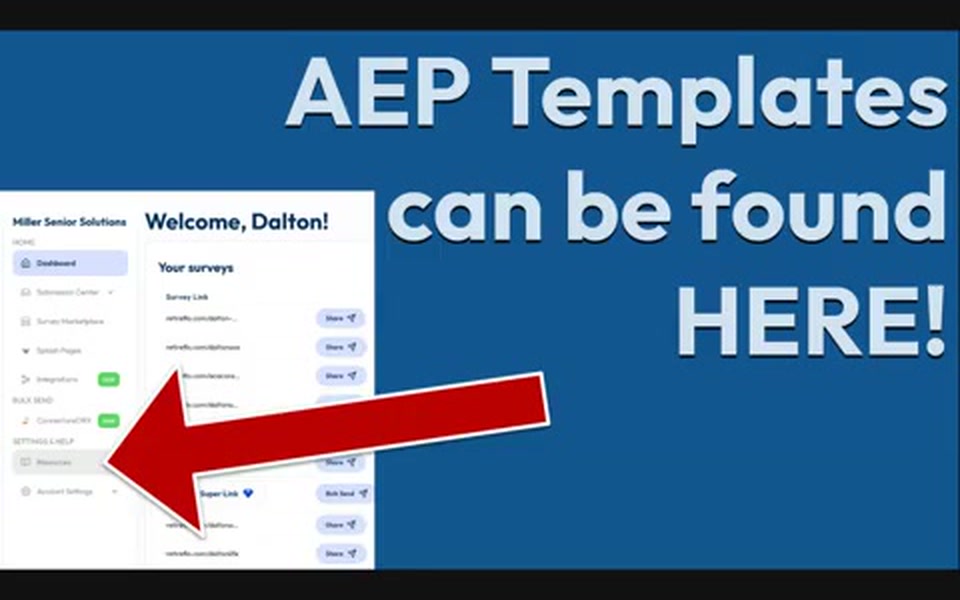
Under the Resources section on the left side of your RetireFlo dashboard there's a big bold article called AEP Templates — can't miss it. These are the battle-tested emails and texts the RetireFlo team uses at their own agency: copy one, paste it, and drop your link in. Just make sure your survey link sits in big, bold, clear font at the top with a call to action — a tiny link buried at the bottom of a Shakespearean letter ain't gonna work.
ConnectureDRX users: three bonus ways to send
If ConnectureDRX is your enrollment platform (you might know it as My Health Plan, Connect for Insurance, Medicare Now, or Health Plan Cart), your subscription includes three extra distribution methods:
1. The Super Link — copy and paste it just like a regular link, but when a survey comes back, RetireFlo checks your Connecture book for a matching first name + phone or first name + email. A match updates that contact; no match creates a new one.
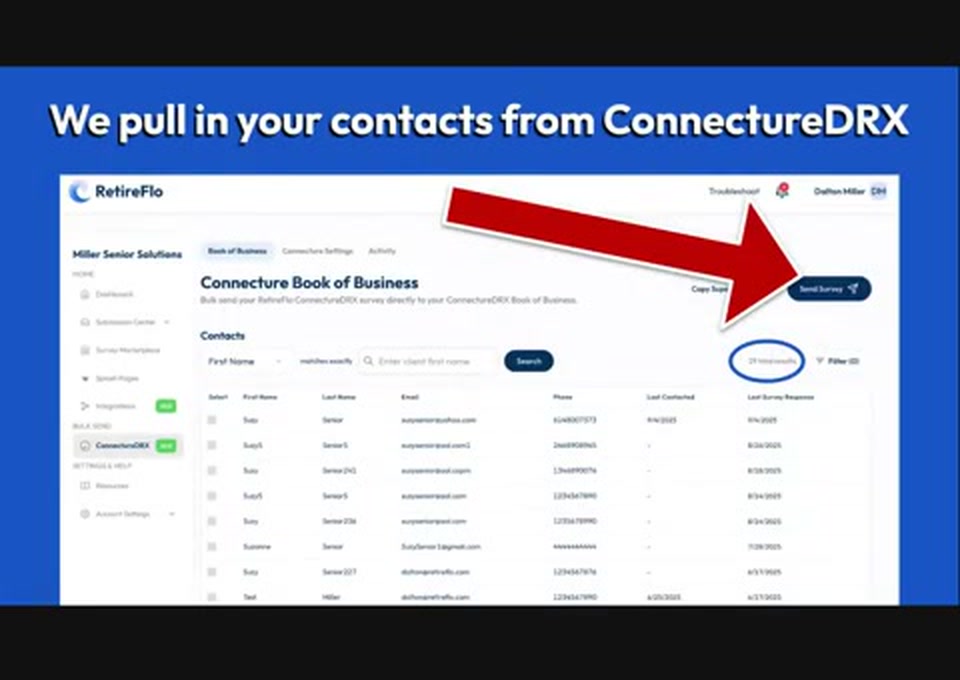
2. Bulk Send — the best one. Click ConnectureDRX under Bulk Send on the left side of your dashboard and RetireFlo lists your entire book of business. Select specific clients or send to everyone, customize the message, choose email, text, or both, and optionally remove the doctor and hospital questions for a "Part D only" survey. Best of all, you can filter by last sent and last received, so each new blast only hits people who haven't completed it yet.
3. One at a time inside ConnectureDRX — press New Profile and choose new beneficiary for RetireFlo for someone brand new, or open an existing client's profile and press Send Survey on the right side of the screen.
One required setup step: log in to your Connecture platform, open your account overview, and turn on Allow Book of Business. That's what powers Bulk Send and the Super Link's duplicate checking.
Good to know
- Send one to yourself first. Before you blast your book, go through the survey yourself — you'll see what your clients see, and you'll know what to say when someone calls with a question.
- Try the weekly rhythm. Dalton's home agency starts mass-blasting in early August, then repeats the send every week — filtering out everyone who's already completed it by "last received" — about 11 times before October 15. Result: roughly a high-70s to 80% survey take rate walking into AEP.
- Super Link matched the wrong name? If a client completes the survey as "Sandra" but she's "Sandy" in Connecture, the match fails and a duplicate is created. Not the end of the world — Connecture shows when each profile was last updated, so just use the freshest one.
- The bottom line: send it out, early and often. If a tree falls in the forest… you get it. No one completes a survey they never received.
Still stuck?
Grab a time with the RetireFlo team and we'll walk through it with you — or ask the community, someone's always online.