 RetireFlo Resources
← All tutorials
RetireFlo Resources
← All tutorials
How to Sign Up for RetireFlo
New to RetireFlo? This walkthrough takes you from zero to a fully set-up account.
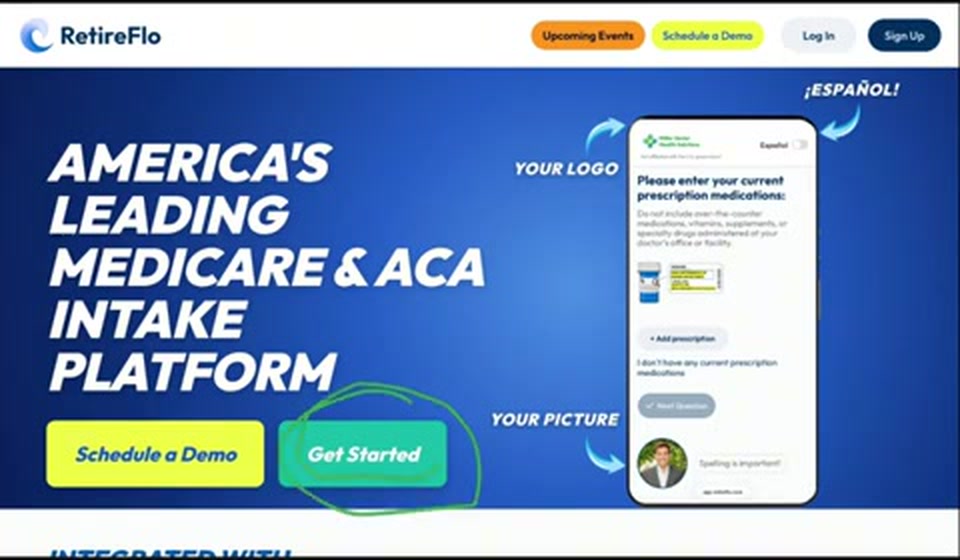
Go to retireflo.com and click “Get Started”
Head to retireflo.com and press the aqua-teal Get Started button — or Sign Up in the top corner; both do the exact same thing. This works whether you're a Medicare, ACA, or life agent. You'll be asked what you're looking to do on RetireFlo — choose creating an agent or agency page. If you have a promo code, keep it handy; that's coming up.
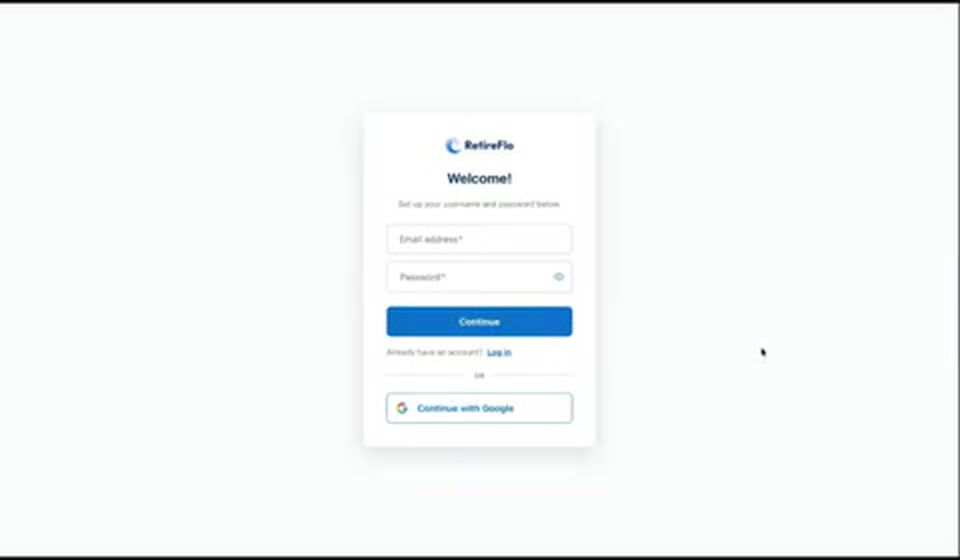
Create your login and secure your account
Set up a username and password — or, if you use Google, you're more than welcome to continue with Google. Next comes multi-factor authentication: enter a phone number and RetireFlo texts you a code within seconds. Don't sweat the number — you can always change it later.
Tell us about your agency
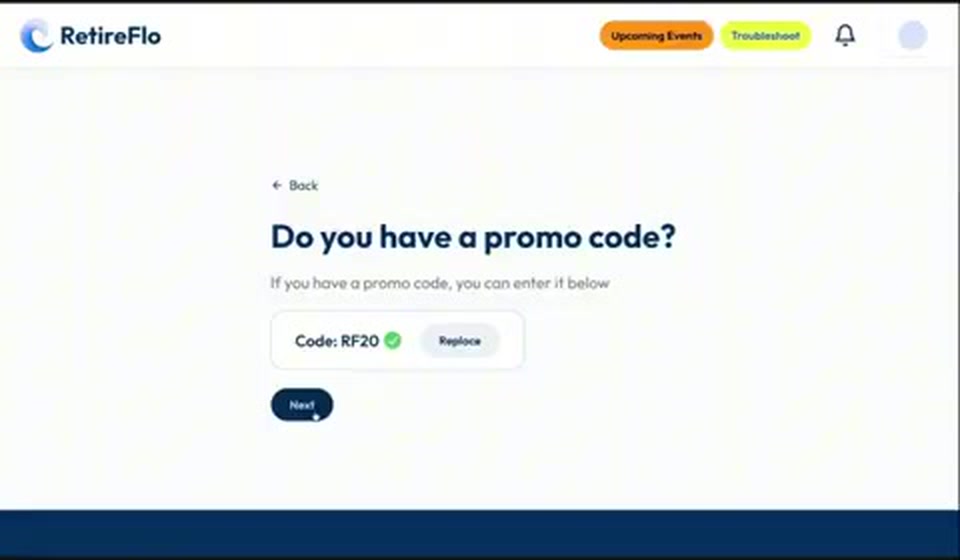
Now we get to know you so your dashboard feels comfortable. You'll enter your agency's name, then its address — start typing and it pulls in the rest automatically. Then comes the promo code question (you may have one from your FMO), your name, and the terms of service, which promise that this data is yours and only yours. Feel free to read it — you can even copy and paste it — then sign.
A little gift for reading this far: 20% off
When you reach the promo code question, enter RF20 — all caps — and it takes 20% off your RetireFlo subscription. No FMO code? This one's on us.
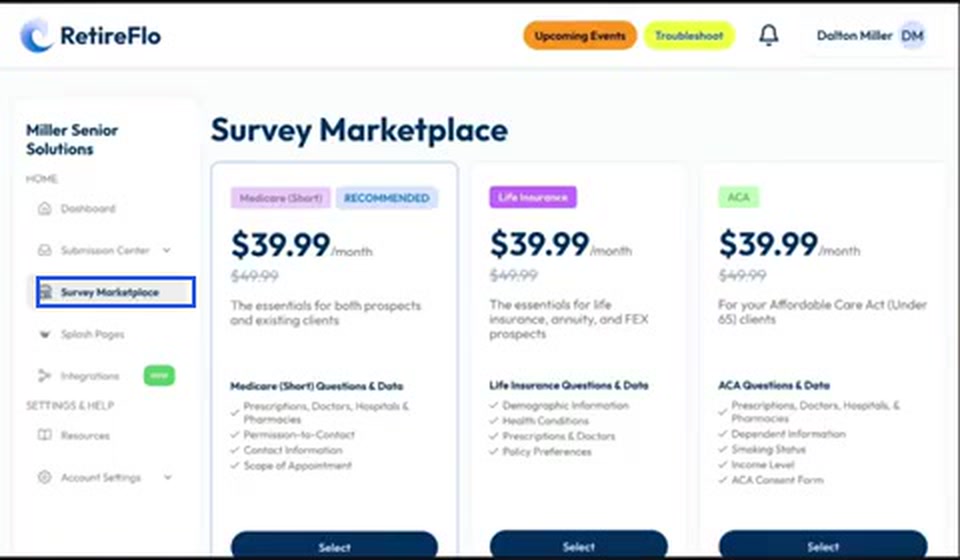
Pick your survey in the Survey Marketplace
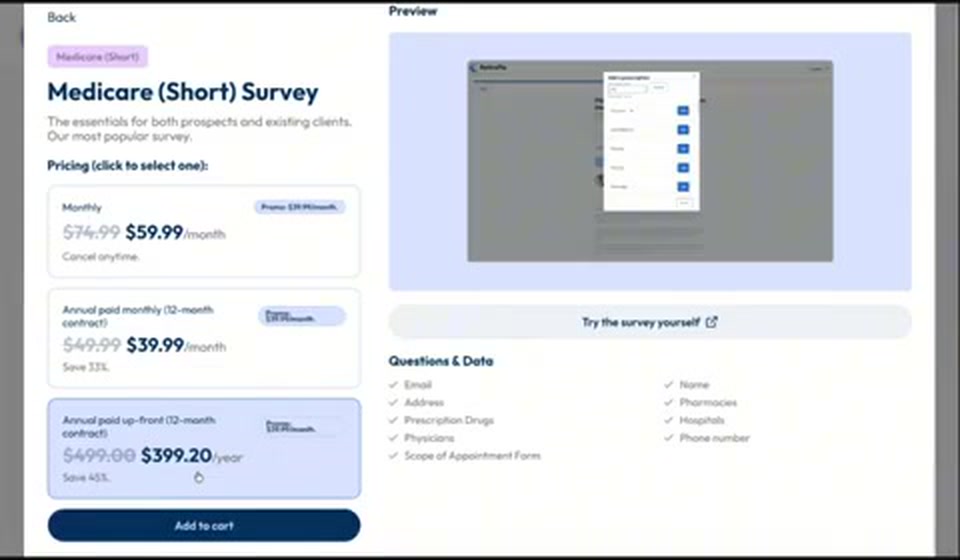
Surveys — intake forms — are RetireFlo's bread and butter, so after sign-up you're brought straight to the Survey Marketplace. (If you skipped it, it's on the left side of your dashboard.) There are three flavors: Medicare, the most popular; Life Insurance, which captures health conditions, prescriptions, doctors, and policy preferences; and ACA for your under-65 business, covering the household, prescriptions, doctors, hospitals, pharmacies, smoking status, income level, and the ACA consent form. They ask different questions because quoting Medicare, life, and ACA are all different — but the sign-up process is the same for all three.
Choose a payment plan and check out
Three payment plans: annual, paid up front — the most affordable option; a 12-month contract paid monthly at $50 a month ($39.99 with the discount); or monthly, cancel anytime, which costs a bit more. Add a payment method — credit card or bank information — review your cart, and hit Agree & Subscribe.
Customize your survey
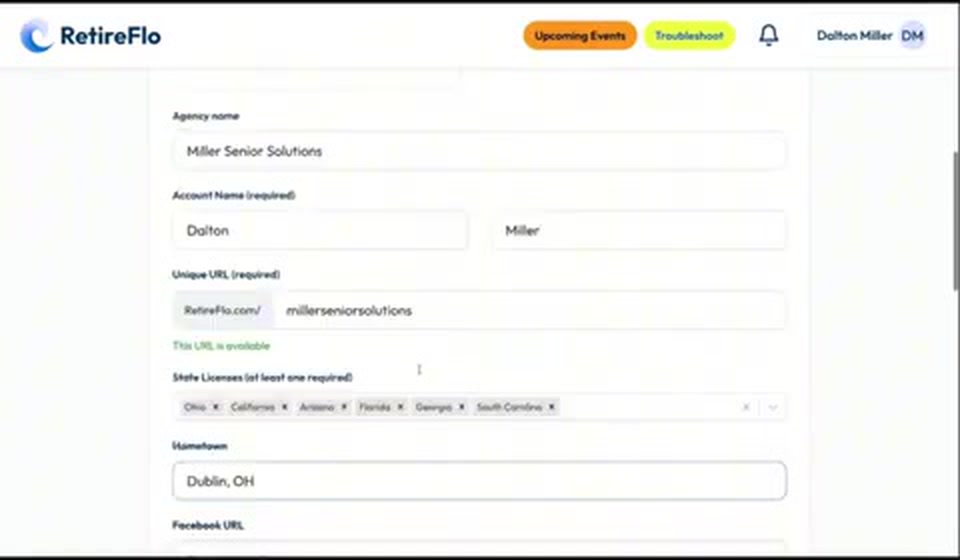
The final stretch is making your survey ready for prime time. Upload a headshot and your agency logo, and put your real first and last name in the account name — it narrates the survey, so don't jerry-rig this one. Then the big one: your unique URL — retireflo.com/you-choose. This is the link you'll text and email to clients and prospects, so pick something that fits your agency. Add your state licenses, your hometown (we recommend the “City, State ZIP” format — it looks professional), and optionally your Facebook or LinkedIn links so people can check that you're legit. You can also pick your survey's accent color, add action buttons — custom links at the end of the survey, like your Calendly or scheduling page — and enter up to two email addresses to be notified of every new submission. Press Finish.
Copy your link and send it out
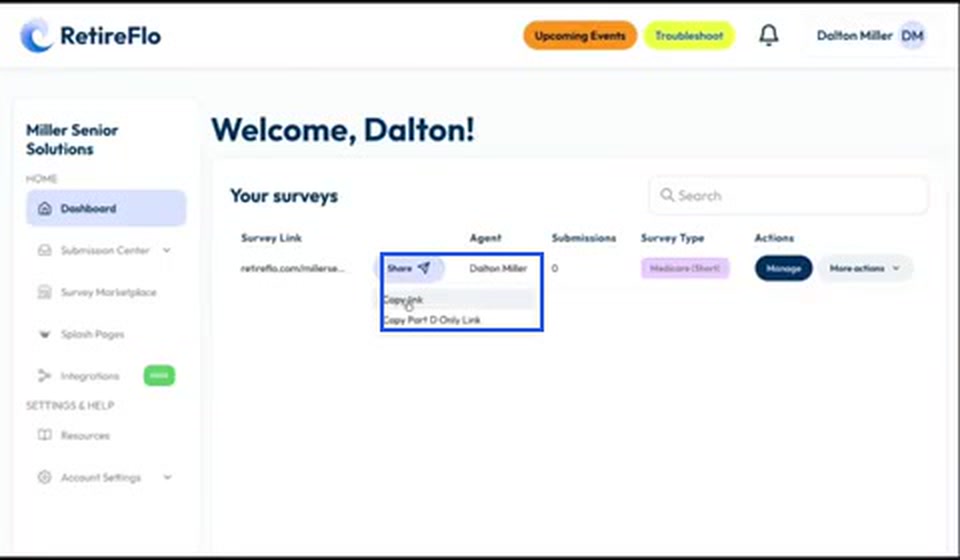
Wham, bam — your survey is created, and there's no hold period, no waiting, no loading. From your dashboard, copy your survey link, write a thoughtful email or text to your client or prospect, and paste it in. Need it for print materials? Press More Actions and download the QR code.
Good to know
- Promo code: RF20 — all caps — gets you 20% off all RetireFlo products. Wink wink.
- Nothing is permanent: your headshot, phone number, colors — any of it can be changed later. Dye your hair purple tomorrow, swap the headshot tomorrow.
- Most affordable plan: annual paid up front — and you should be writing business year-round anyway.
- Questions? The RetireFlo team are real-life human beings — many are Medicare agents themselves. Schedule a time via the yellow Troubleshoot button any time.
Still stuck?
Grab a time with the RetireFlo team and we'll walk through it with you — or ask the community, someone's always online.