 RetireFlo Resources
← All tutorials
RetireFlo Resources
← All tutorials
Making Your Free Splash Page
Build your personal splash page and start collecting client submissions — it's free and faster than you'd think.
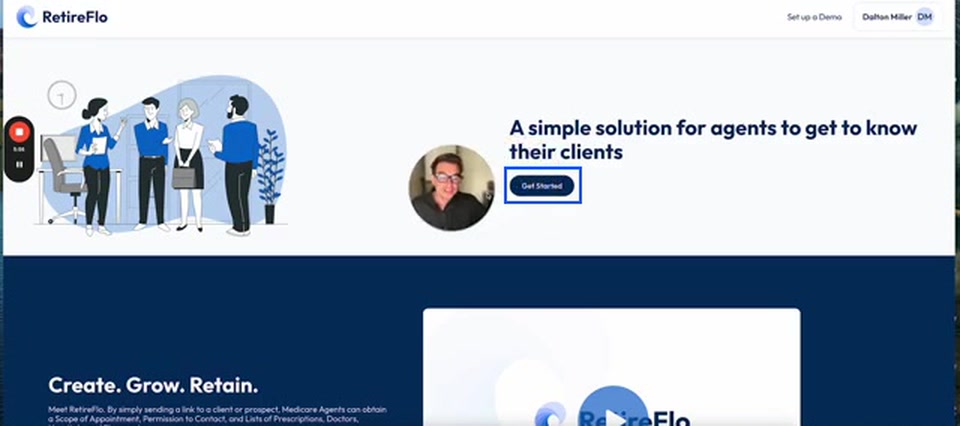
Go to retireflo.com and press “Get Started”
Splash is a free tool — designed by agents, for agents — that helps you collect star reviews and referrals, whether you're ACA, Medicare, life insurance, long-term care, final expense, or group. Head to retireflo.com and press Get Started. You'll answer a couple of questions about yourself and your agency to set up your account. No credit card required, and you don't need an existing RetireFlo account.
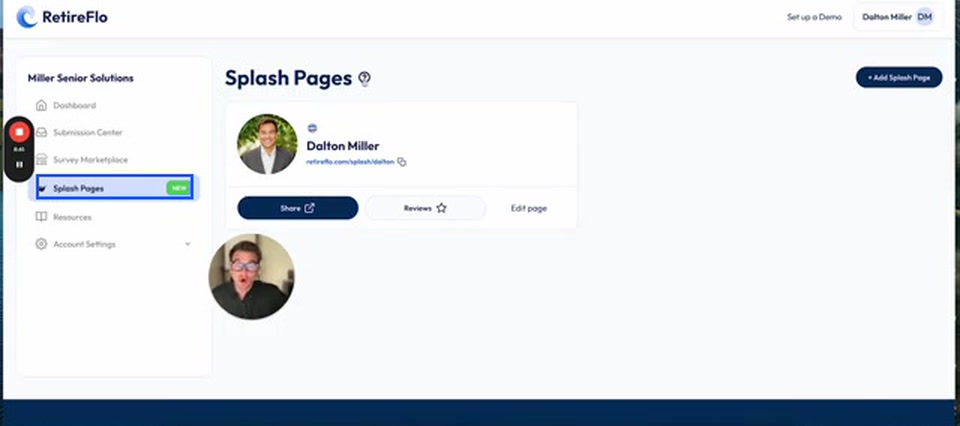
Open the Splash Pages section
Once you land on your welcome screen, find Splash Pages in the left-hand menu. This is where you make your free splash pages — RetireFlo walks you through a quick intro on how they work and how to link your Google account. Setting one up takes about 3 minutes; it's all stuff you know off the top of your head.
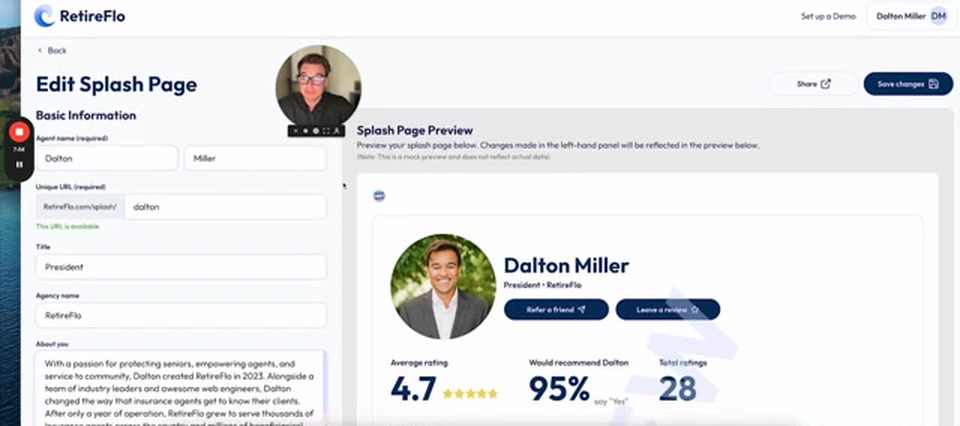
Fill in your page details
Type in your first and last name, then choose your unique URL — retireflo.com/splash/whatever. Make it your first name, your agency name, first-last, whatever you want. Add your title, agency name, and a short bio — don't overthink it, just tell people what you do and why you do it. Then your contact info: phone, email, website if you have one, Facebook and LinkedIn links, address, and NPN number. Pick what you're licensed to sell (annuities, disability, life, dental, vision, PDPs, and more — when someone leaves a review, we ask what you helped them with) plus your licensed states, and upload your headshot and logo. A previewer on the right shows what your page will look like as you go.
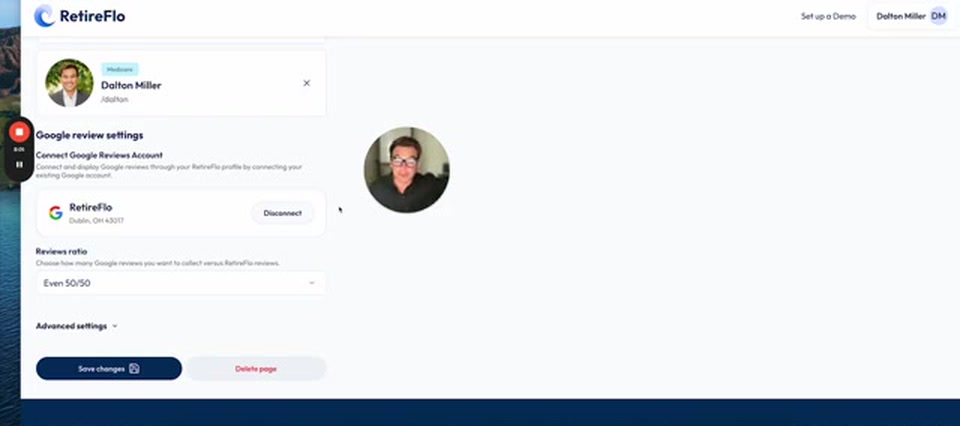
Connect notifications, your survey, and Google
Drop in your email address so RetireFlo can ping you every time you get a new review. If you have an existing RetireFlo survey, connect it here to drag in those awesome client reviews — just pick which survey. Then connect your Google Business account to automatically pull in your Google reviews, and choose your reviews ratio: how often clients who land on your splash page get sent to Google versus leaving a review right on RetireFlo.
Fine-tune the advanced settings and save
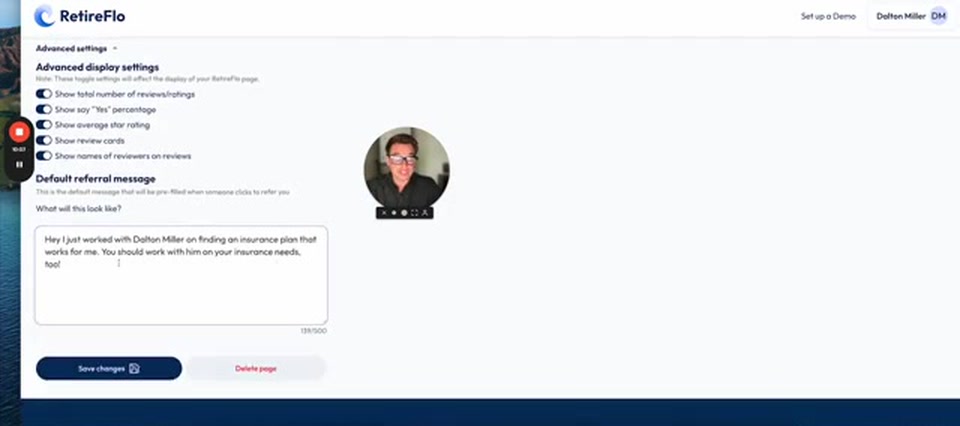
In advanced settings, you don't have to list things just like we have it — toggle any statistic on or off (total ratings, the “say yes” percentage, star rating, review cards, reviewer names). You can also customize your default referral message — this is what your clients send out on your behalf. Press Save Changes and boom: your page is immediately live. No hold period. Start distributing it and collecting reviews and referrals.
Share it — with a review or referral link
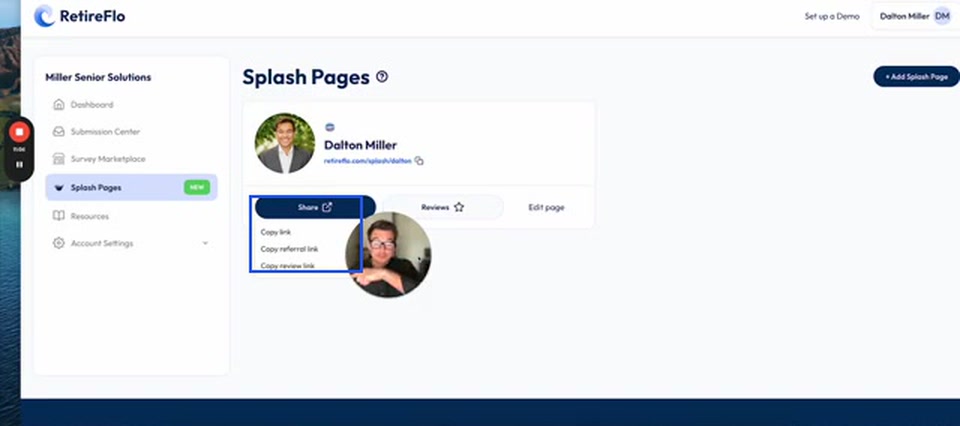
Two cool extras. From the Share menu you can copy the regular link, a referral link, or a review link — the review link opens your same splash page but immediately asks your client for a review (and the referral link nudges them to refer a friend; either way the full page still works underneath). When they refer a friend, they choose text or email, your pre-written message pops into their phone, and all they type is their friend's number or email. And when a great review comes in, you can download a social media review card to post on Facebook, LinkedIn, or Instagram — contact info included.
Good to know
- Completely free: no strings attached, no credit card, and no paid RetireFlo account required.
- RetireFlo vs. Google reviews: RetireFlo reviews are easier to capture (no username or password needed), but Google reviews improve your SEO and are publicly searchable. Google reviews get pulled back into RetireFlo; RetireFlo reviews stay on RetireFlo — still great for the social media cards.
- The preview's numbers are placeholders: the ratings shown while you build don't reflect your real reviews — those you'll earn by collecting.
- Not a website replacement: Splash isn't meant to replace your existing website — it's a tool to enhance your business. Review notifications are live now; referral notifications are on the way.
Still stuck?
Grab a time with the RetireFlo team and we'll walk through it with you — or ask the community, someone's always online.