 RetireFlo Resources
← All tutorials
RetireFlo Resources
← All tutorials
Adding or Changing Your State Licenses
Just got appointed in a new state? Dropped one? Your RetireFlo survey keeps a list of the states you're licensed in, and it takes about a minute to update. Here's where it lives and how to change it.
Go to your RetireFlo Dashboard
Log in at RetireFlo.com — your surveys are listed on the Dashboard under Your surveys.
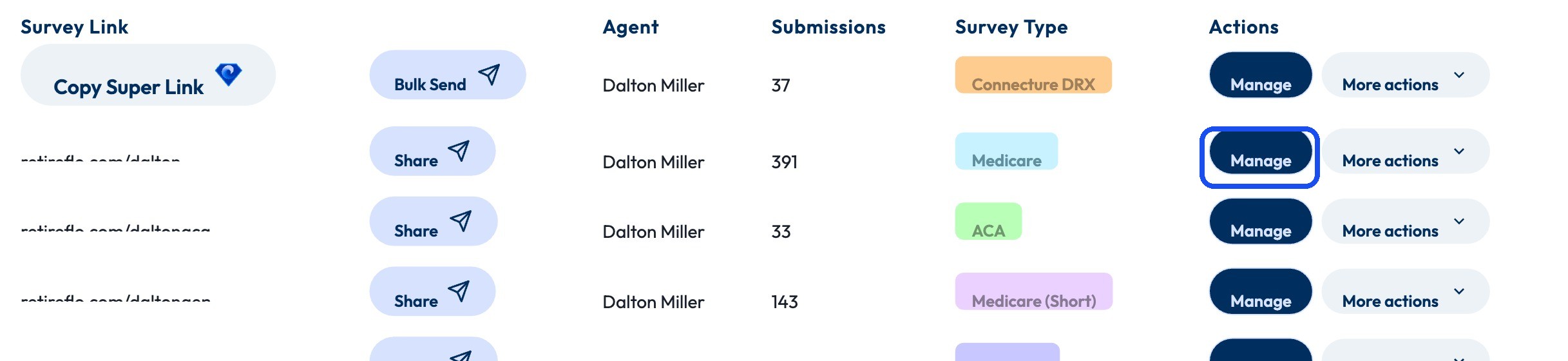
Press “Manage” next to your survey
Click Manage on the right side of the survey's row. (Licenses are set per survey — if you run more than one, update each.)
Find the State Licenses field
It's near the top of the Edit Survey page under Survey Information, right below your unique URL: State Licenses (at least one required). Every state you're currently licensed in shows as a chip. To remove a state, click the × on its chip.

To add a state, click in the field and start typing
Click in the empty space after your last chip and type the first few letters of the state — it pops up in a list. Click it and it's added as a new chip. Repeat for as many states as you need.

Save your changes
Hit Save changes at the top of the page. Done — your survey now reflects your current licenses.

Good to know
- At least one state is required — you can't remove your last one. Add the new state first, then remove the old one if you're swapping.
- Per-survey setting — if you have a Medicare survey and an ACA survey, update the licenses on both.
- Got appointed somewhere new? Add it here the same day — it's one of the easiest things to forget until a client from that state fills out your survey.
- Can't find a state? Type slowly — the list filters as you type, and two-word states (New York, South Carolina) match on either word.
Still stuck?
Grab a time with the RetireFlo team and we'll walk through it with you — or ask the community, someone's always online.