 RetireFlo Resources
← All tutorials
RetireFlo Resources
← All tutorials
Getting Email Notifications When a Survey Is Completed
Every time a client completes your survey, RetireFlo can email you right away — and a second address too, so an assistant or teammate sees it as well. Here's where to set (or change) those addresses.
Go to your RetireFlo Dashboard
Log in at RetireFlo.com — your surveys are listed on the Dashboard under Your surveys.
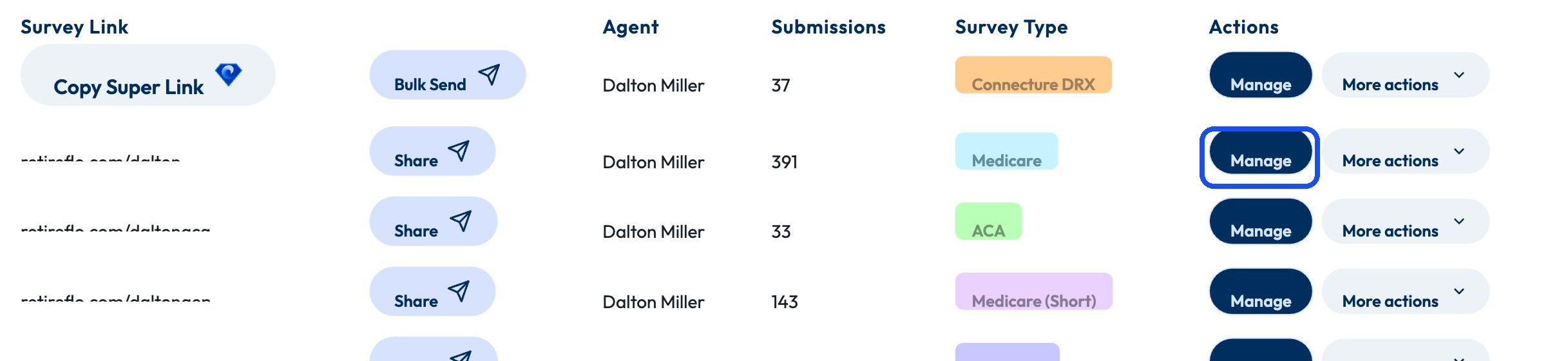
Press “Manage” next to your survey
Click Manage on the right side of the survey's row.
Scroll to “Send email notifications to”
It's near the bottom of the Edit Survey page under Notifications & Permissions. You get two slots: Email #1 and Email #2. Type the address(es) that should get a heads-up when a survey comes in — yours, plus a teammate's if you like. To stop notifications to an address, just clear the field.

Save your changes
Hit Save changes at the top of the page and you're done.

Good to know
- Two addresses max — a common setup is you in #1 and your assistant, office manager, or a shared inbox in #2.
- Add a teammate during AEP — when submissions pile up, a second set of eyes means no client waits.
- Not getting the emails? Check spam/promotions first, and confirm the address is spelled right and saved.
- Per-survey setting — each survey has its own notification addresses.
- Want a text instead (or too)? SMS alerts live in a different spot — Account Settings → Notification Preferences.
Still stuck?
Grab a time with the RetireFlo team and we'll walk through it with you — or ask the community, someone's always online.