 RetireFlo Resources
← All tutorials
RetireFlo Resources
← All tutorials
Getting Text Notifications When a Survey Is Completed
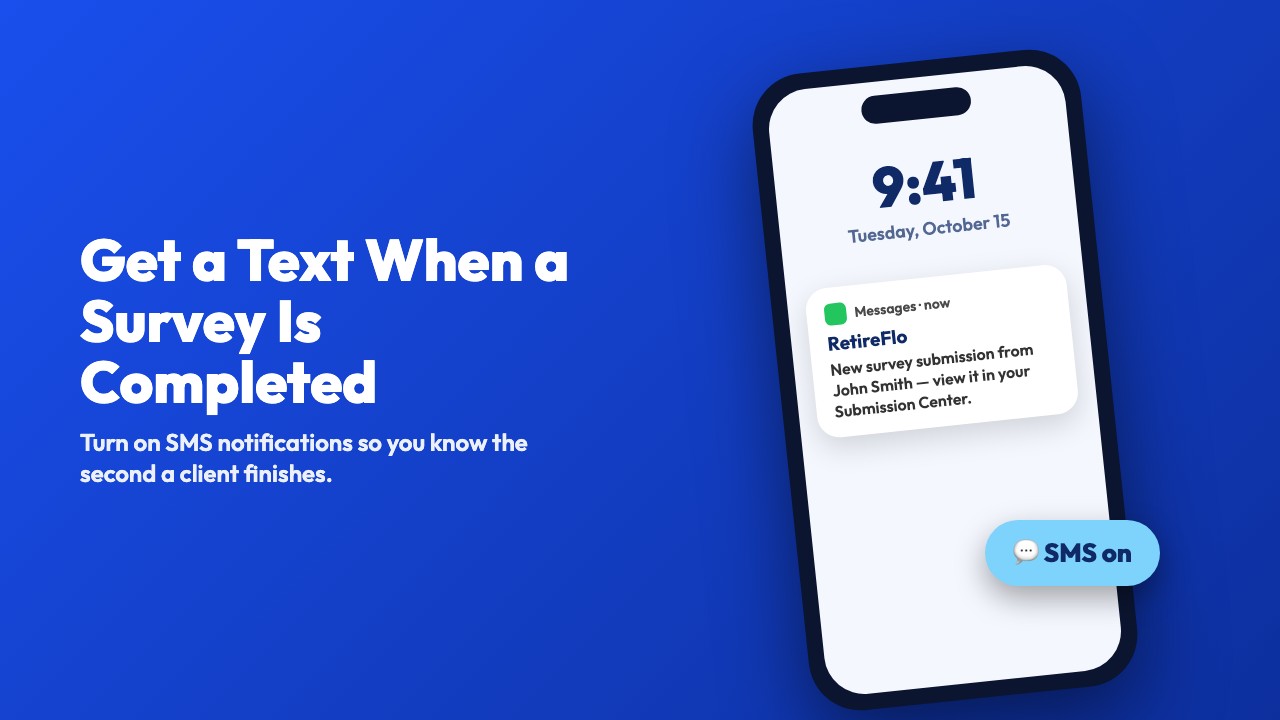
Email is great, but a text hits your pocket instantly. RetireFlo can send you an SMS the moment a client completes your survey — and it lives in a different spot than email notifications: Account Settings → Notification Preferences. Here's how to turn it on.
Go to your RetireFlo Dashboard
Log in at RetireFlo.com.
Open Account Settings → Notification Preferences
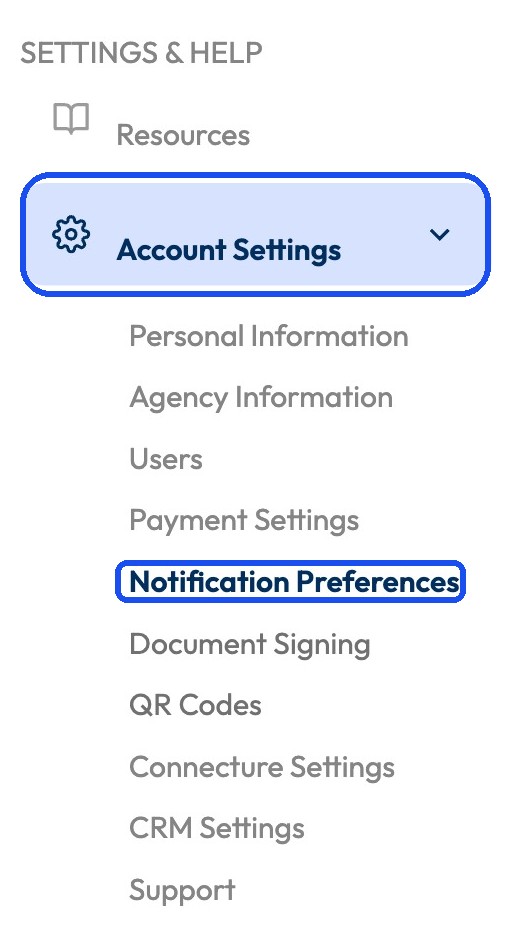
In the left sidebar under Settings & Help, click Account Settings to expand it, then click Notification Preferences.
Enter the phone number you want texts sent to
The Phone number field at the top is where the texts go. It doesn't have to match the number on your account — use your cell, and change it anytime.

Turn on SMS Notifications and pick what you want texts for
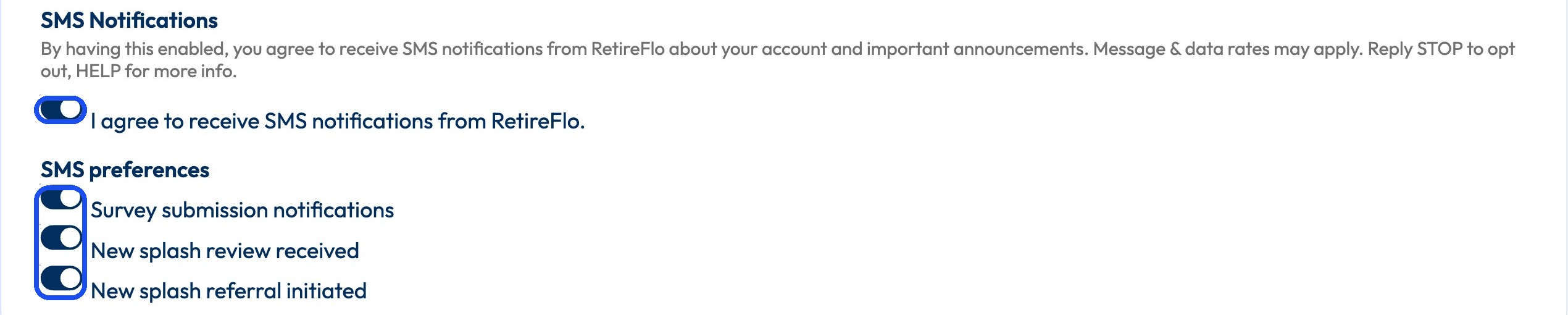
Flip on “I agree to receive SMS notifications from RetireFlo” — that's the master switch. Then under SMS preferences, make sure Survey submission notifications is on. You can also get texts for new splash reviews and splash referrals if you use Splash Pages.
Save your changes
Click Save changes at the bottom. Next completed survey, your phone buzzes.

Good to know
- Account-wide, not per survey — unlike email notifications, one setting here covers every survey you run.
- The master switch has to be on — if the SMS Notifications toggle is off, the individual preferences below it won't send anything.
- Standard message & data rates may apply. You can opt out anytime by replying STOP, or reply HELP for more info.
- Not getting texts? Double-check the phone number, confirm the master toggle is on, and make sure you hit Save.
- Best combo: texts to you, emails to your assistant — you react fast, they handle the follow-up.
Still stuck?
Grab a time with the RetireFlo team and we'll walk through it with you — or ask the community, someone's always online.