 RetireFlo Resources
← All tutorials
RetireFlo Resources
← All tutorials
How to Sign Up for RetireFlo Integrated with HealthSherpa for Medicare
This guide takes you from zero to a fully working Medicare setup: your RetireFlo account, the Medicare (Short) survey, and the HealthSherpa Medicare connection that automatically syncs every completed survey — prescriptions, doctors, hospitals & pharmacies, and permission to contact — into your HealthSherpa Medicare account. About five minutes, start to finish.
Create or sign in to your RetireFlo account
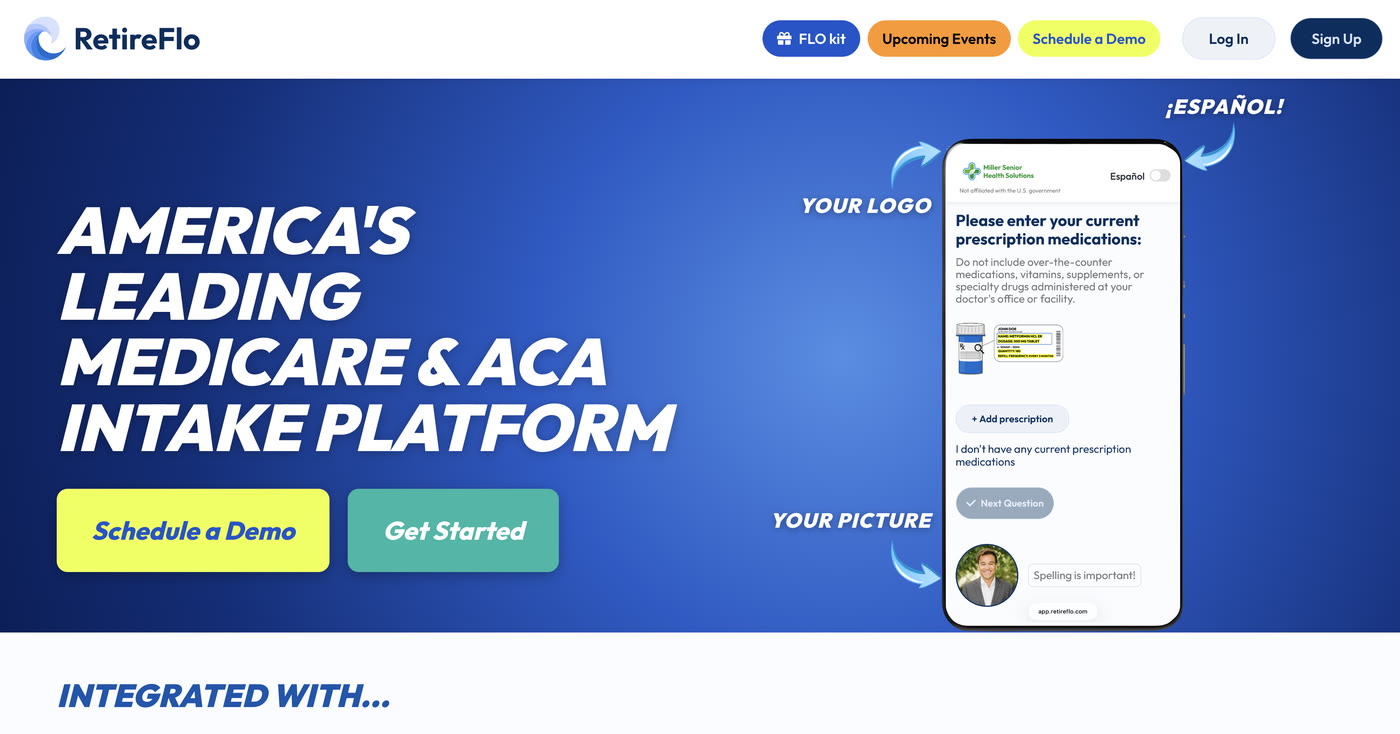
Head to RetireFlo.com and click Get Started (top right) to create your account — or Log In if you already have one.
Already have a survey with us? Skip ahead
If you already have a Medicare survey — or a ConnectureDRX survey — with RetireFlo, you're all set on the survey side. Jump straight to step 4 and connect HealthSherpa Medicare.
Add a promo code
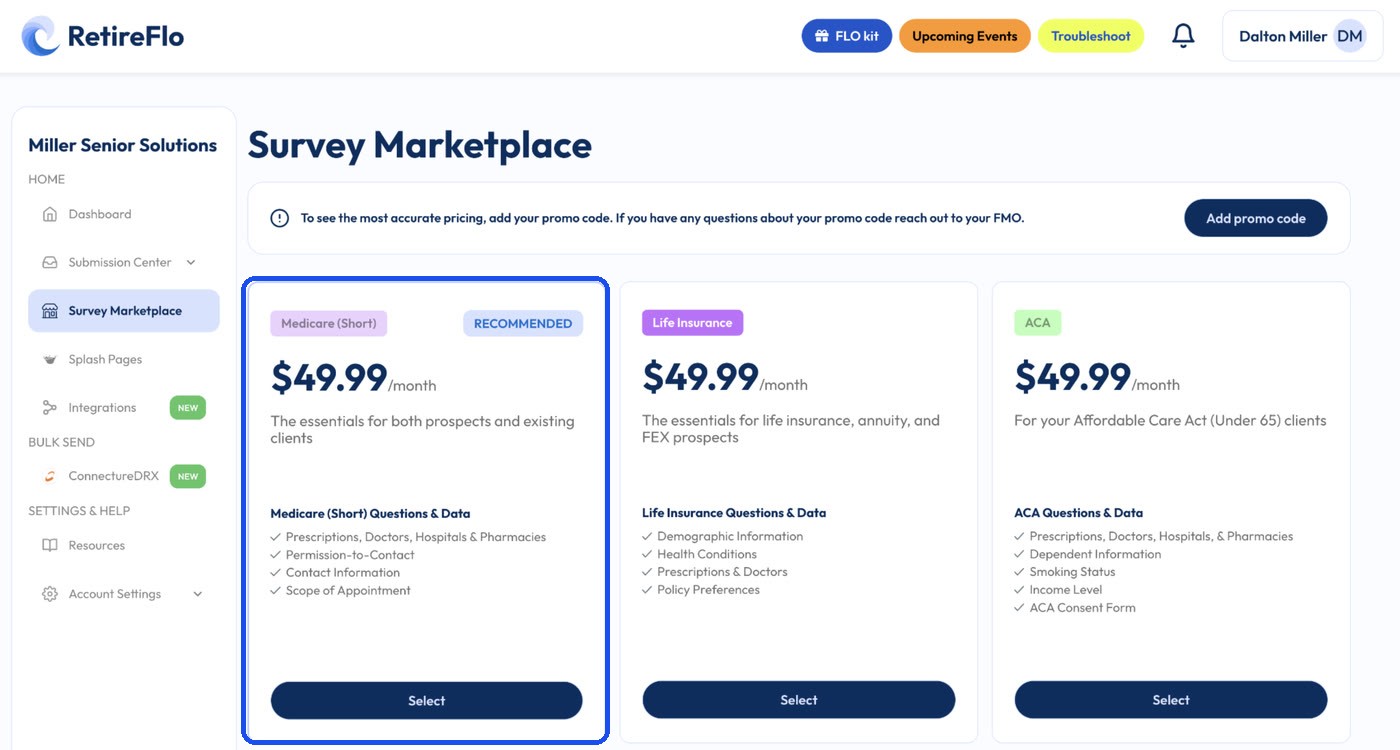
Open the Survey Marketplace from the left sidebar. At the top there's a banner with an Add promo code button — that's where discount codes go. You can also add one any time under Account Settings → Payment Settings, in the “Traditional Links Discount Code” box.
A little gift for reading this far: 20% off
Click Add promo code and enter RF20 — all caps — before you purchase. It takes 20% off your RetireFlo subscription.

Purchase the Medicare (Short) survey
In the Survey Marketplace, select the Medicare (Short) survey — it's the recommended one, covering prescriptions, doctors, hospitals & pharmacies, permission to contact, contact information, and scope of appointment. Choose monthly or annual; it's active immediately.
Connect HealthSherpa Medicare
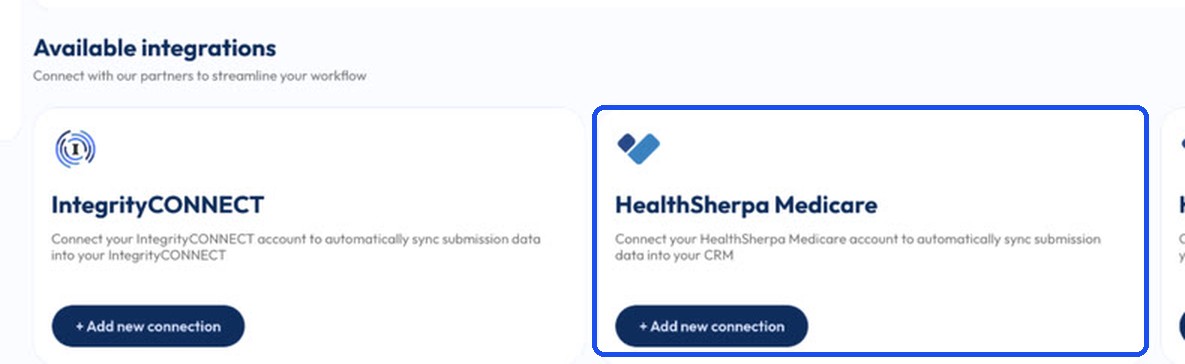
Click Integrations in the left sidebar, scroll to Available integrations, find HealthSherpa Medicare, click + Add new connection, and enter your HealthSherpa username and password. That's the whole link-up.
Send your survey and let it sync
Copy your survey link from the RetireFlo dashboard and text or email it to a client. When they finish (about 10 questions, five minutes), the submission syncs automatically to your HealthSherpa Medicare account — and the green Enabled check under Connected integrations tells you the sync is live.
Even better: this integration gets a one-click Quote button too. Every completed survey shows it right in your Submission Center — press it and HealthSherpa opens with your client's information ready to quote. Try it on your first submission; it's the best part.

Good to know
- What transfers: contact information, prescriptions, doctors, hospitals & pharmacies, and permission to contact.
- The Scope of Appointment does NOT transfer to HealthSherpa Medicare — it stays in RetireFlo. If your SOA needs to be signed, do that in your RetireFlo Submission Center.
- Writing ACA too? There's a separate HealthSherpa ACA integration with a one-click Quote button of its own — here's that guide.
- Unlimited sends — one subscription, as many clients and prospects as you like.
- Returning shoppers: send them a fresh link next season — we match on first name + email or first name + phone and update the existing profile instead of creating a duplicate.
Still stuck?
Grab a time with the RetireFlo team and we'll walk through it with you — or ask the community, someone's always online.