 RetireFlo Resources
← All tutorials
RetireFlo Resources
← All tutorials
How to Sign Up for RetireFlo Integrated with ConnectureDRX
RetireFlo lives right inside your ConnectureDRX account. In one click you can send a compliant, senior-friendly survey that automatically updates your beneficiaries' Connecture profiles with their drug lists, doctors, hospitals, pharmacies, permission to contact, and a signed Scope of Appointment. Signing up takes about five minutes — just follow the six steps below.
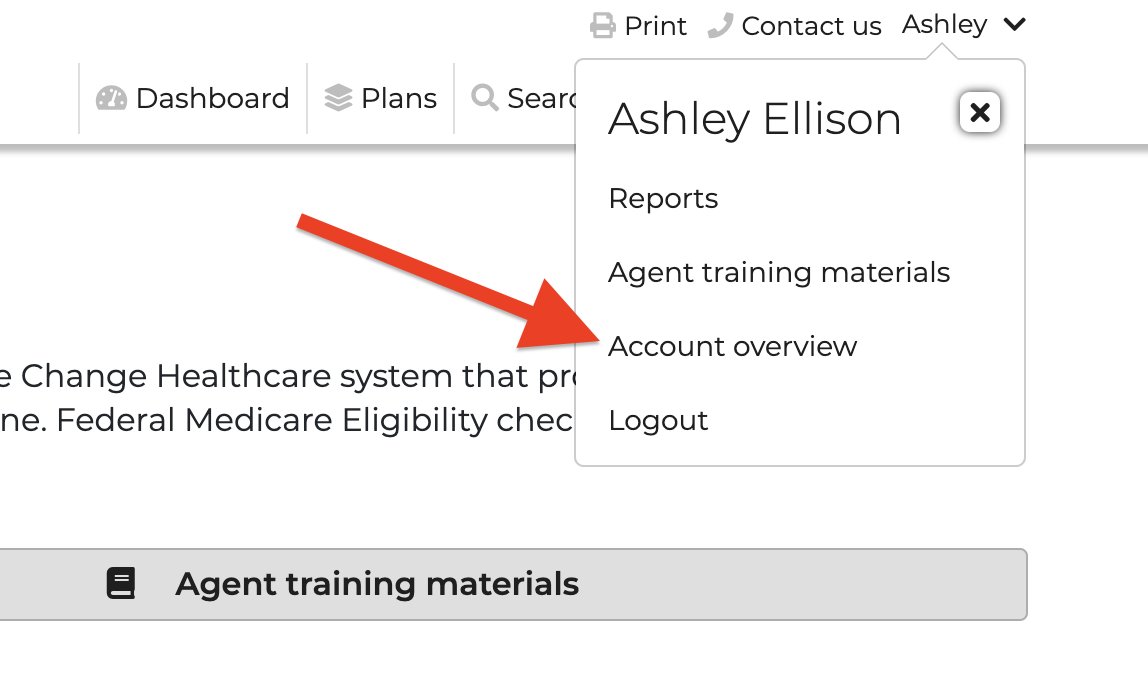
Open Account Overview in ConnectureDRX
Log in to your ConnectureDRX account, click your name in the top right corner, and select Account Overview from the dropdown.
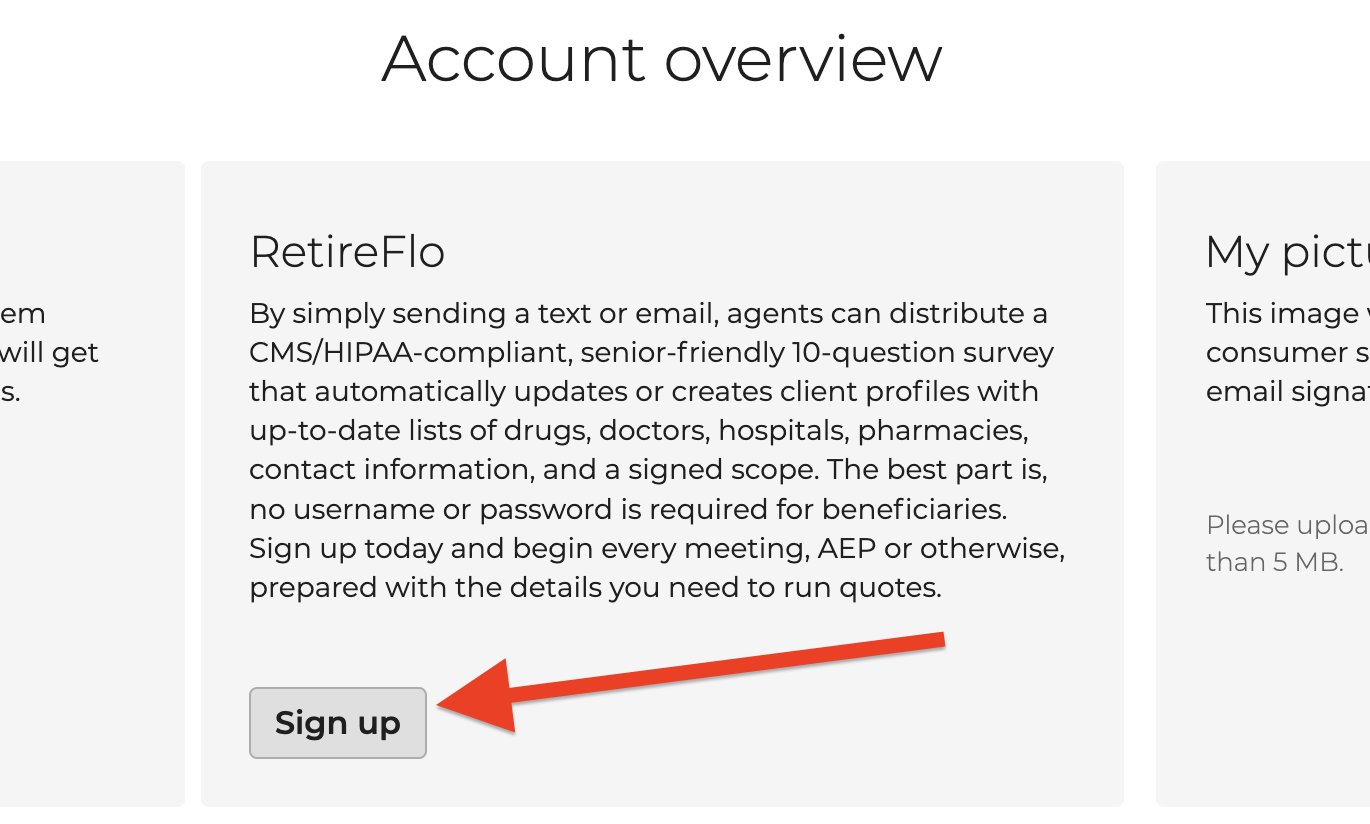
Click “Sign up” in the RetireFlo box
In the center of the Account Overview page you'll find the RetireFlo box. Click Sign up.
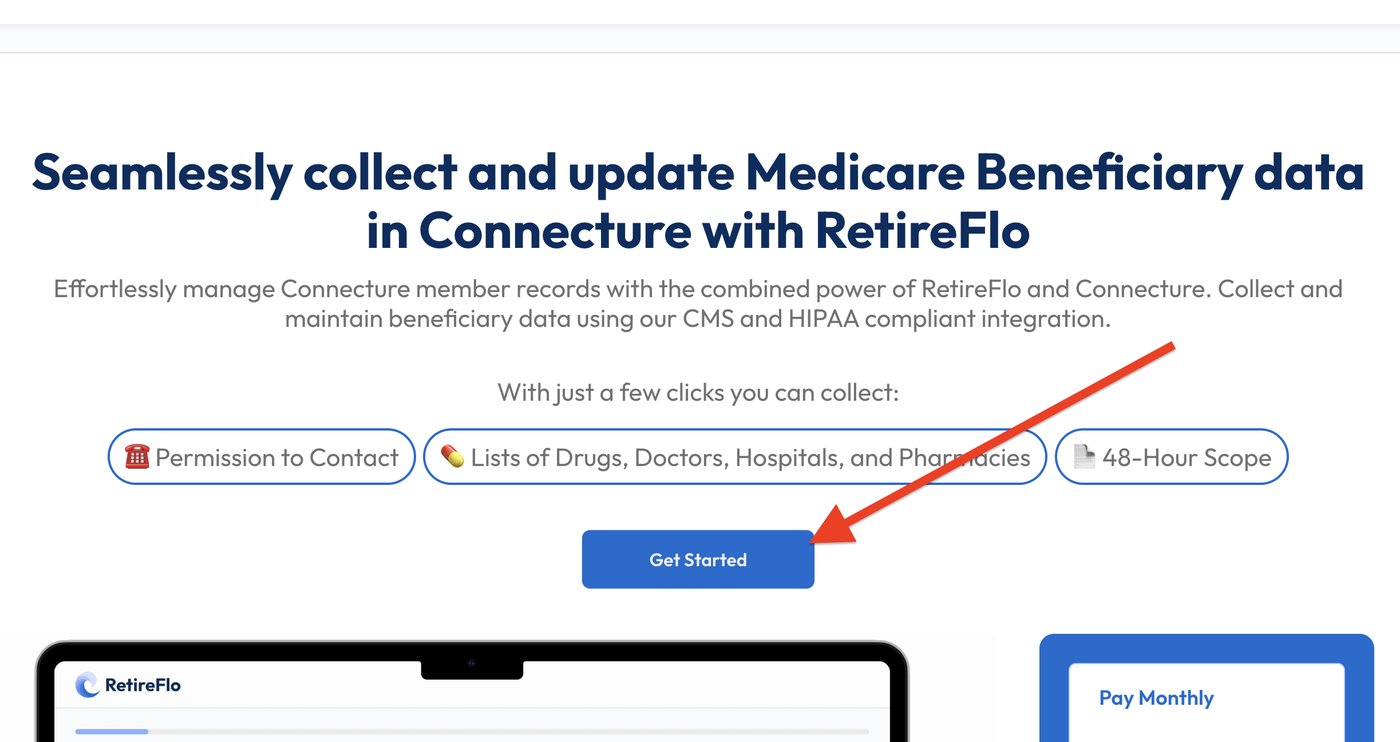
Select “Get Started”
You'll land on the RetireFlo welcome screen showing everything the integration collects for you — permission to contact, lists of drugs, doctors, hospitals & pharmacies, and the 48-hour scope. Click Get Started.
Create your username and password
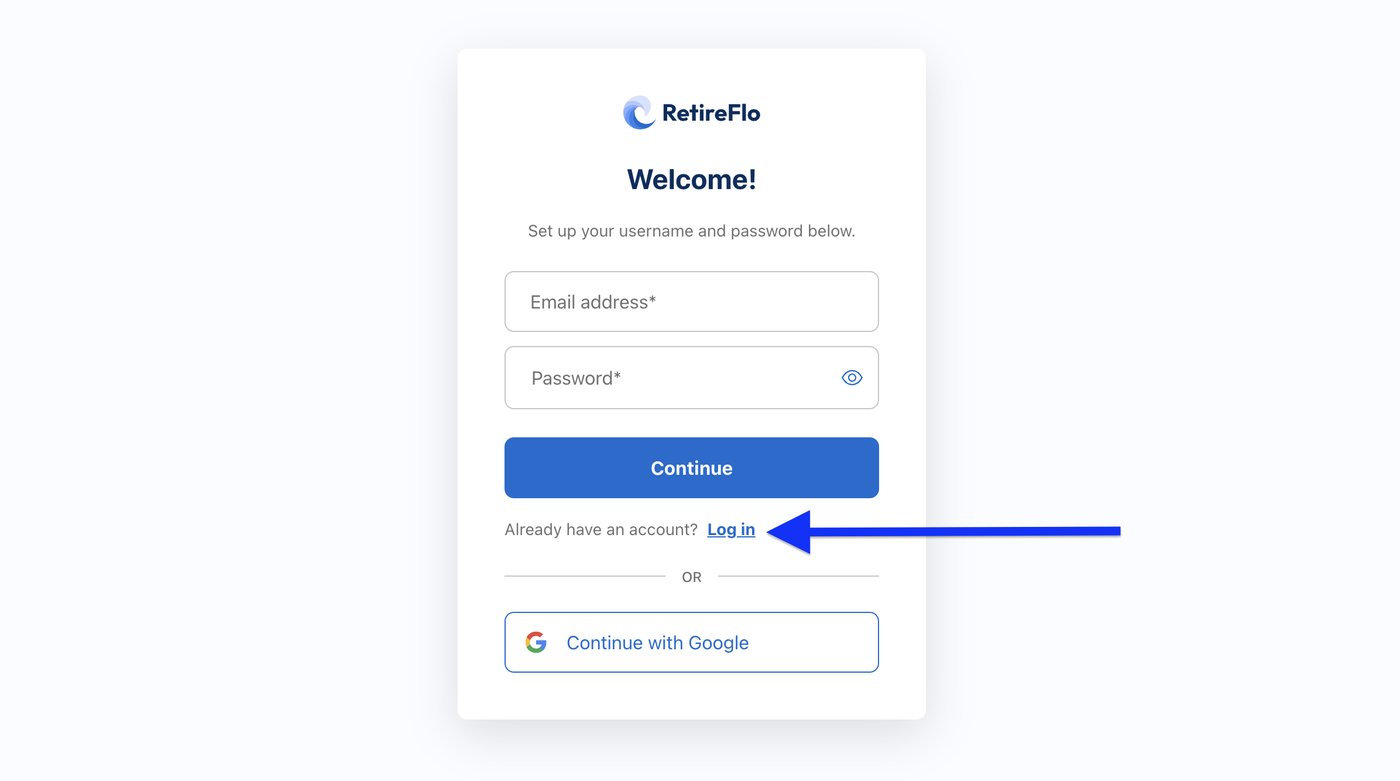
Enter an email address and password to create your RetireFlo login, then press Continue. Already a RetireFlo user? Select Log in instead — that links your existing RetireFlo account to Connecture.
Choose your payment preference
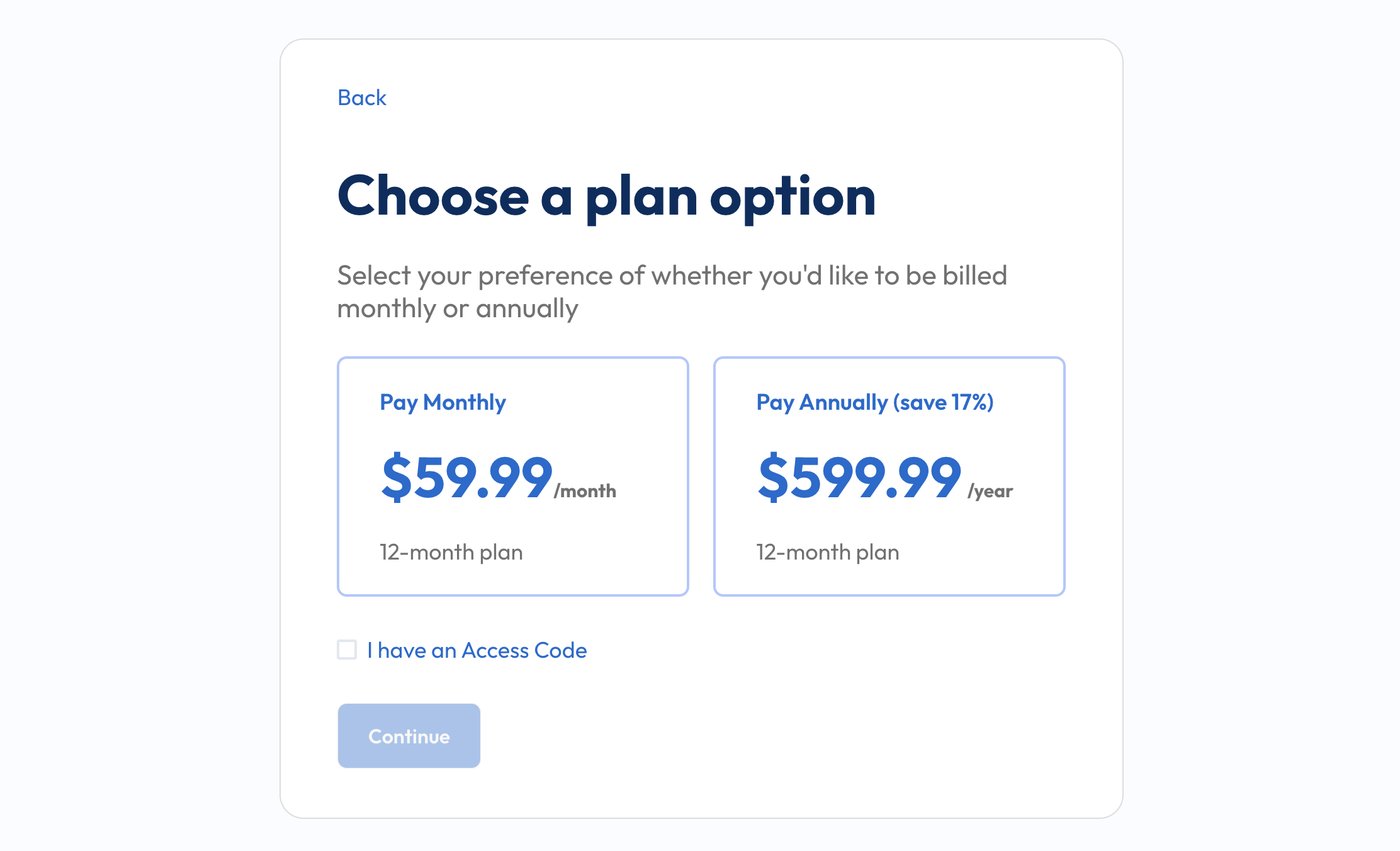
Pick Pay Monthly or Pay Annually (annual saves 17%) and enter your payment method. Both options are 12-month contracts — the choice is simply how you'd like to be billed.
A little gift for reading this far: 20% off
On this screen, check the “I have an Access Code” box, then enter RF20 — all caps — before you press Continue. It takes 20% off your RetireFlo subscription.
Add your branding and press “Finish”
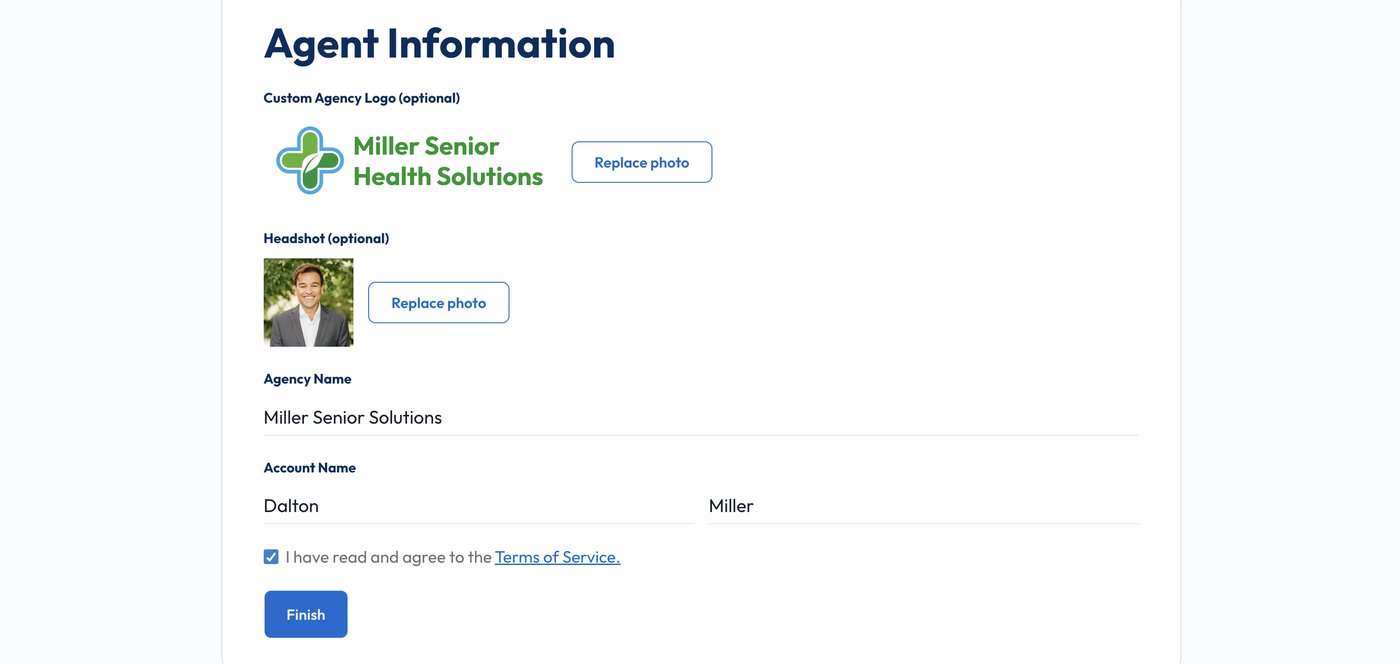
Upload your agency logo and headshot (both optional), enter your agency name and your name, agree to the Terms of Service, and press Finish. Your survey will carry your branding, so make it look like you.

Good to know
- Refresh Connecture when you're done — after finishing signup, reload the ConnectureDRX page so your RetireFlo tools appear.
- Already on RetireFlo? Don't create a second account — use the Log in link in step 4 to connect the account you already have.
- Unlimited sends — one subscription covers every client and prospect you send the survey to.
- Both billing options are 12-month plans — monthly vs. annual only changes how you pay, and annual saves 17%.
- Make it yours: you can update your logo, headshot, and colors any time afterward under Manage next to your survey.
Still stuck?
Grab a time with the RetireFlo team and we'll walk through it with you — or ask the community, someone's always online.