 RetireFlo Resources
← All tutorials
RetireFlo Resources
← All tutorials
How to Buy the Scope Only Survey
Sometimes you don't need the whole survey — you just need a signed Scope of Appointment before the meeting. The SOA Only survey collects exactly that: your client signs the scope from a single link, and nothing else. Here's how to add it to your account in a few minutes.
Create or sign in to your RetireFlo account
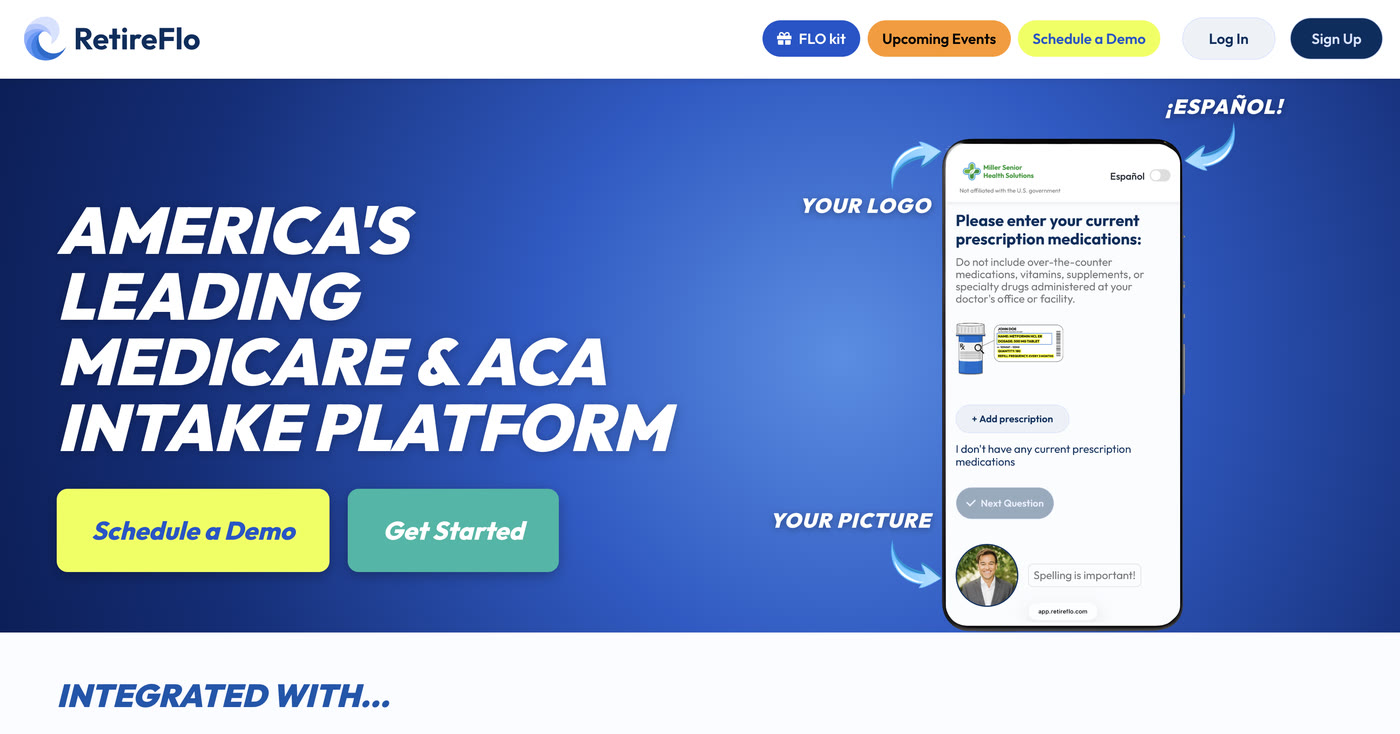
Head to RetireFlo.com and click Get Started (top right) to create your account — or Log In if you already have one. Already a RetireFlo user? Just log in and jump to step 3.
Add a promo code
Open the Survey Marketplace from the left sidebar. At the top there's a banner with an Add promo code button — that's where discount codes go. You can also add one any time under Account Settings → Payment Settings, in the “Traditional Links Discount Code” box.
A little gift for reading this far: 20% off
Click Add promo code and enter RF20 — all caps — before you purchase. It takes 20% off your RetireFlo subscription.

Select the SOA Only survey
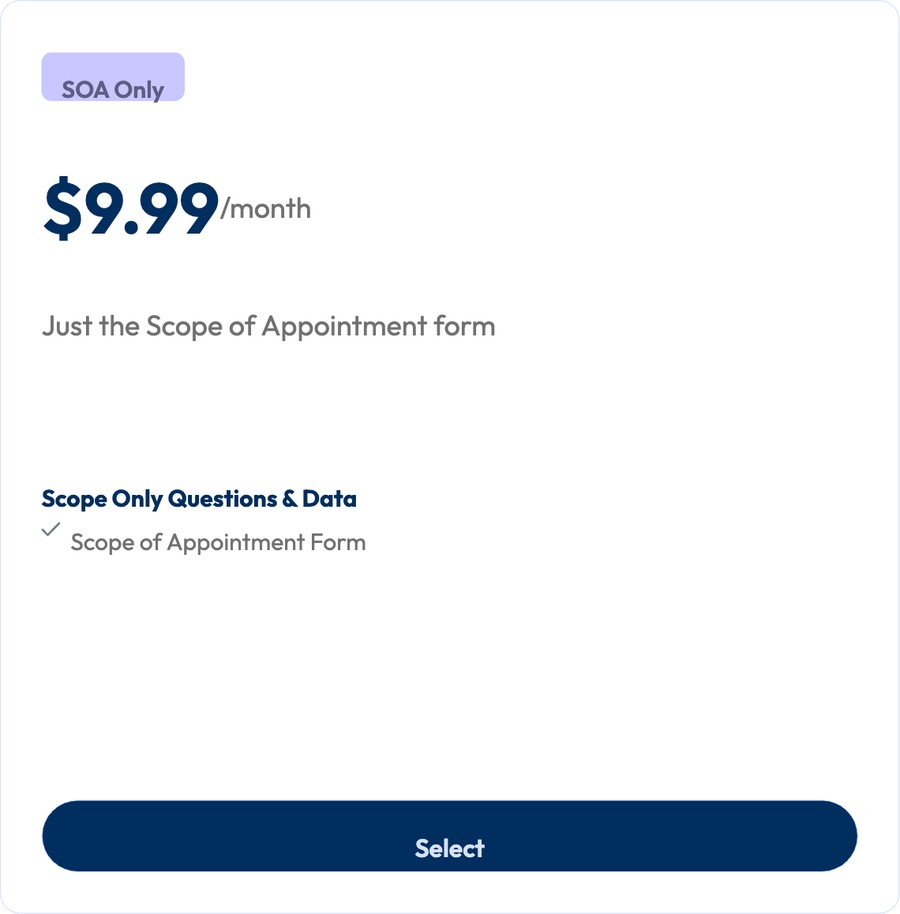
In the Survey Marketplace, scroll past the main surveys to the second row and pick SOA Only — just the Scope of Appointment form, nothing else. Press Select, choose monthly or annual billing, and check out. Your link is active immediately.
Make it yours, then send it out
Press Manage next to your new survey to add your logo, headshot, and colors, then copy your link from the dashboard and send it to the client before your meeting — text or email both work. When it comes back signed, counter-sign it in your Submission Center. (Our Scope of Appointment guide covers signing and where everything is stored.)
Good to know
- What it collects: the Scope of Appointment form — that's it. No health questions, no drug lists.
- Valid for one year: CMS regulations state SOAs are valid for one year from the date they're signed.
- Stored for at least 10 years in your Submission Center — download it any time from the submission's View / Download button.
- Want the scope and the good stuff? The Medicare (Short) survey includes the SOA plus prescriptions, doctors, hospitals & pharmacies, and permission to contact — same signing flow, much more to quote with.
- Unlimited sends — one subscription, as many clients and prospects as you like.
Still stuck?
Grab a time with the RetireFlo team and we'll walk through it with you — or ask the community, someone's always online.